
Auto sleep
Save money on cloud costs and reduce wasted GPU spend with auto sleep. When Studios are idle for more than 10 minutes, they will automatically sleep.
An example of auto sleep.
What is auto sleep
Idle Studios automatically save their state and turn off.
What counts as idle
If the Studio is running anything such as model training, hosting an API server, etc, it will not go to sleep.
A Studio continuing to run a training job.
Environment persists
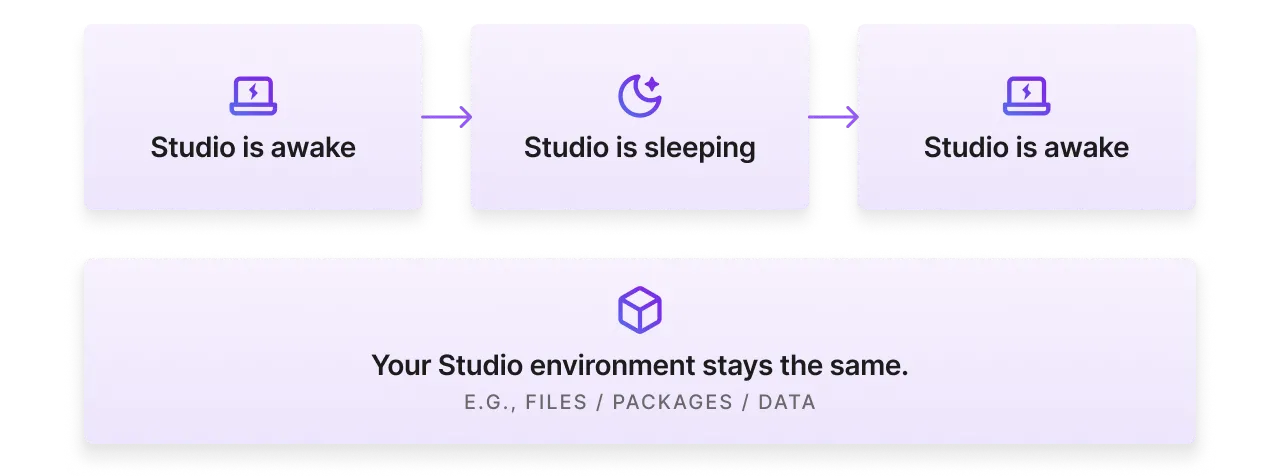
Before a Studio sleeps, it saves your progress. This means any files you've added, packages installed, data downloaded, etc... All of these will be exactly as you left them the next time the Studio starts again.
Pro tier users can disable auto sleep, ensuring that a Studio never turns off for critical workloads. If you're using a free Studio, it will convert to a paid Studio when you disable auto-sleep.
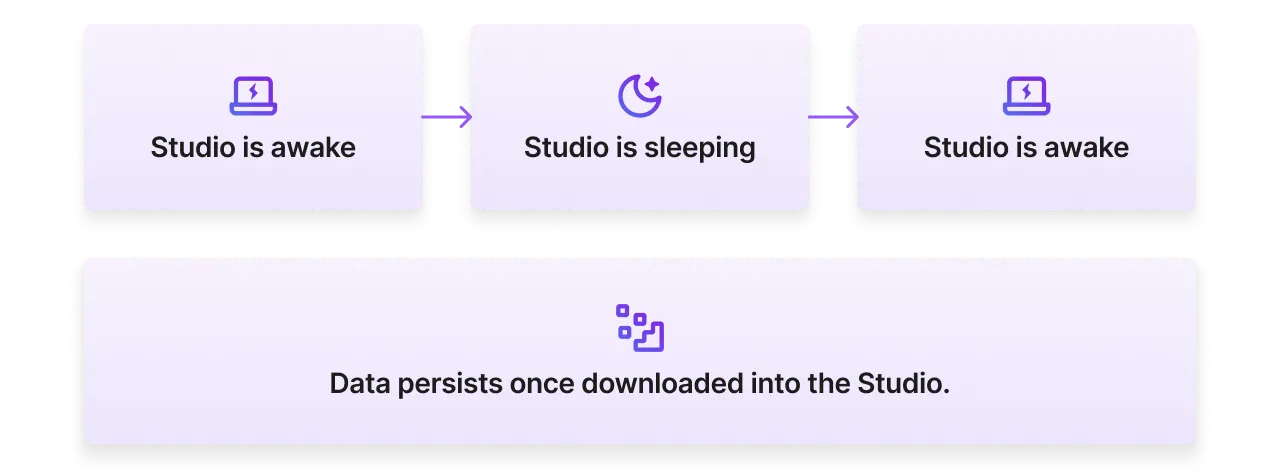
Data persists
No matter how much data you download into the Studio, it will be there next time you turn it back on!
Cost for sleeping Studio
There is no cost for sleeping Studios, other than the storage costs for the files on that Studio.
Modify auto-sleep settings
Change idle timeout
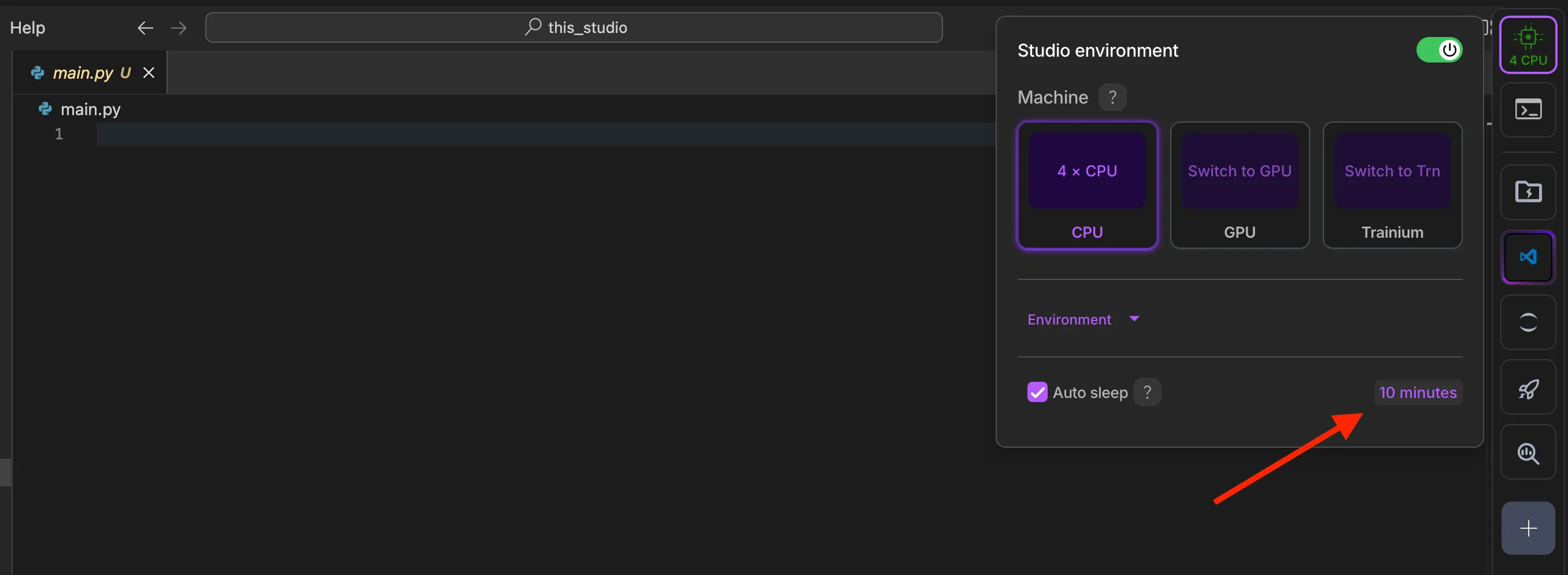
A Studio auto-sleeps by default after 10 minutes of inactivity. To change this timeout setting, simply click on the machine selection button at the top right of the Studio and enter the time you prefer.
Remember last machine used
Studios always restart on a CPU machine. This might feel strange to you if you come from other products where you always stay on a GPU. However, those products don't have the persistency that Studios have. On a Studio, you can develop or debug on a CPU and switch to a GPU *only *when necessary.
To remember the last used machine head to your Teamspace settings > General > Keep the same machine type when the Studio restarts.
Studios always restart on a CPU machine, which saves money.

Use this as an opportunity to adopt our smarter approach and move away from the habit of always coding on GPUs.
Advantages
Save costs
Auto sleep reduces cost because Studios that aren't being used don't stay running. In addition, you are able to spend less time on GPUs and develop/debug more on CPUs and only move to GPUs when you absolutely need to.

Reduce waste
Before adopting Lightning AI, users tend to spend more time on GPUs, since there’s not a straightforward way to switch back to a CPU. This sends compute costs soaring, although it’s preferred to setting up an environment from scratch.

Close the browser
Start your programs, close the browser and go do something else! The Studio will automatically turn off once your program has finished executing. To check on it, simply open your Studio to see progress.
Scripts continue to run even after the browser is closed. When execution is complete, Studios auto sleep.
Was this page helpful?
Thanks for the feedback.