
Cloud folders
Cloud folders are shared data storage that every workflow and can access across clouds.
Sharing the same data across many workflows is hard when each machine has its own local disk or a cloud-specific persistent volume. Teams usually solve this by creating and mounting temporary SSDs, but those volumes are tied to a single cloud or region and don’t scale when you need many parallel runs.
Cloud Folders give you a persistent place for your data that any workflow, Studio, or cluster can mount, so you avoid copying files, resizing disks, or getting locked into a specific cloud setup. They let you organize data across teams and cloud providers with simple, team-based access controls, and you can create folders on AWS S3, Google Cloud Storage, or other providers directly from the Lightning AI teamspace.
Create a folder
Navigate to the teamspace Drive, select "New Folder" on the top right, and click New Folder and choose from three cloud options: cloud agnostic, AWS or GCP.
Cloud agnostic folders
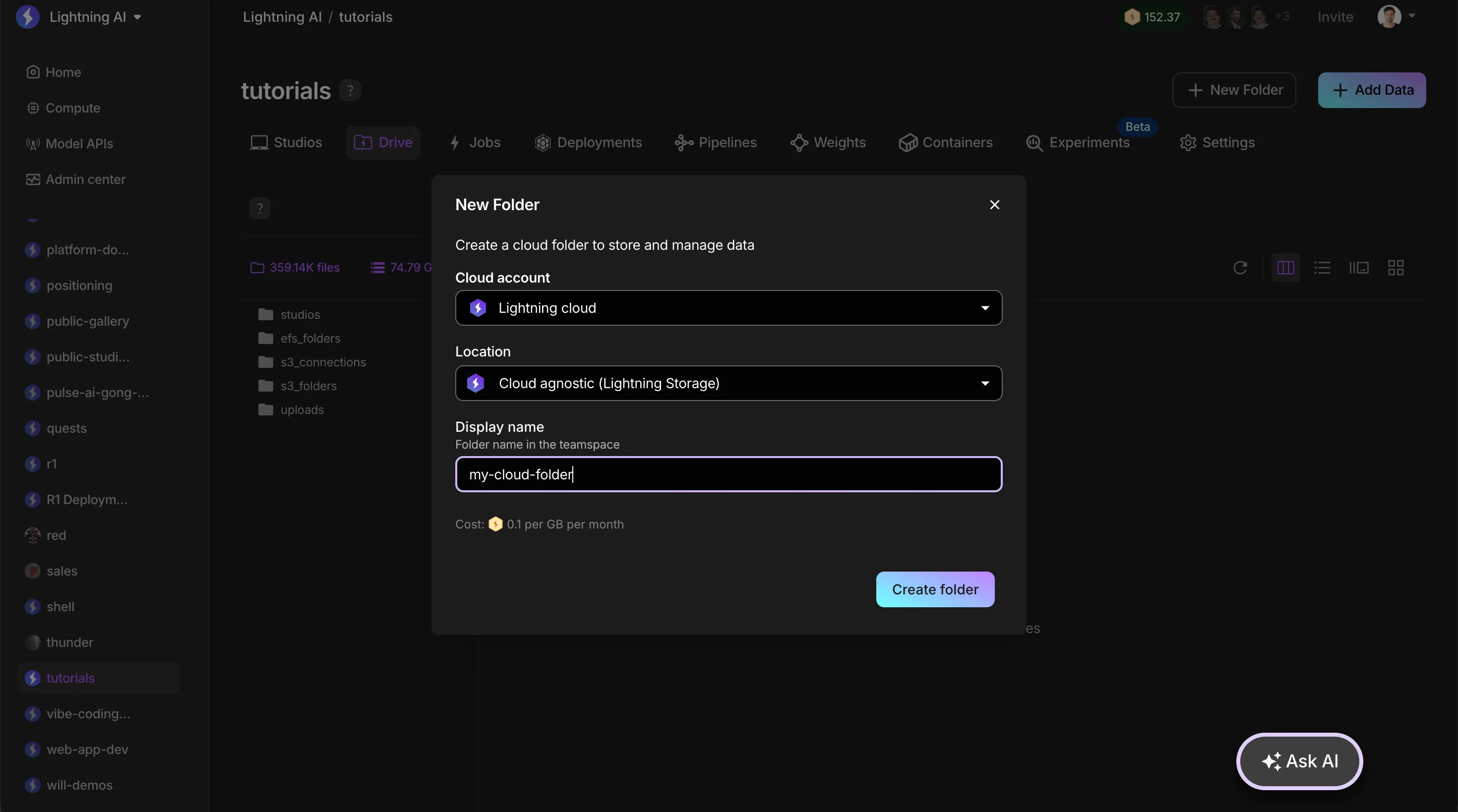
Cloud agnostic folders live on Lightning Storage rather than in one of your own cloud accounts. If your account offers both, you may select Standard or High Performance.
Standard
Data stored on a standard cloud agnostic folder can be accessed from any cloud. There are no egress or ingress fees, with one significant exception: accessing it from AWS or GCP is subject to transfer fees.
Data transfer from this type of folder for high-performance training can be slow. We recommend you process your dataset with LitData which will make data streaming 20x faster and some times even faster than local storage, but you gain the advantage of multi-cloud.
High Performance
A fixed-size volume that Lightning AI provisions and manages for you, for workloads that need fast, consistent access to their data. $0.30 / GiB / month, billed daily, which is three times the rate of a standard folder.
Enter a display name and a size. The volume shows as pending in the Drive while Lightning AI provisions it, then mounts read/write at /teamspace/lightning_storage/<folder name>.
Limitations:
- The folder is tied to the compute location and region you create it on. Studios and Jobs running anywhere else won't have access to it, even in the same teamspace.
- The Drive can't browse it. It's a network mount, not a bucket, so read and write it from a Studio or Job, not the web app or SDK.
- You can grow a volume with
Resize, but you can't shrink it. - Billing is based on provisioned capacity, not on what you actually store.
- Deleting the folder deletes the data.
High-performance folders are Lightning Cloud only, and the option appears only where your account and compute location support it. On your own AWS or GCP account, EFS and Filestore folders are the equivalent, on an Enterprise plan.
AWS folders
Lightning AI offers two types of cloud folders when using AWS as your cloud. By the way, data stored on AWS can only be accessed by jobs/studios/clusters on AWS.
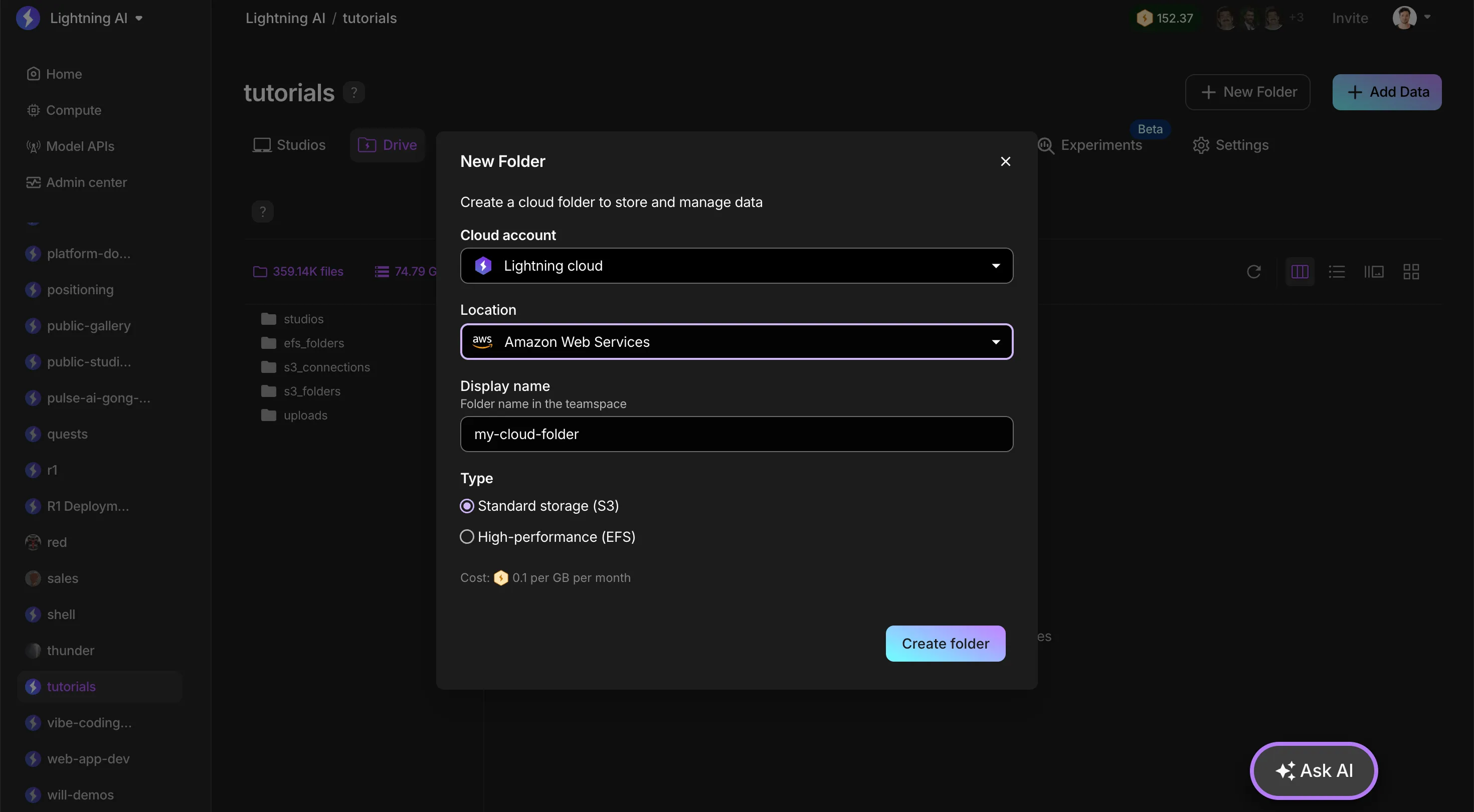
Tip: If you upload data to an AWS folder and can't see it in the terminal, chances are your Studio/Job is not running on AWS!
S3
S3 is going to be the cheapest way to store data on AWS, but it will be extremely slow if you have large datasets (in GB size) or small (GB size) datasets with millions of tiny files. If you still want to use S3, we recommend you process your data with LitData which will make it moving the data at least 20x faster.
LitData formats the data in a format that is fast to stream to machines from cloud storage.
EFS
EFS is going to be the highest performance storage solution on AWS, but also the priciest. We only recommend EFS for things like high-performance model training. However, if you really want the fastest performance data solutions for model training, we can do much better than EFS.
Please contact [email protected] to schedule a demo.
GCP folders
Lightning AI offers two types of cloud folders when using GCP as your cloud. By the way, data stored on GCP can only be accessed by jobs/studios/clusters on GCP.
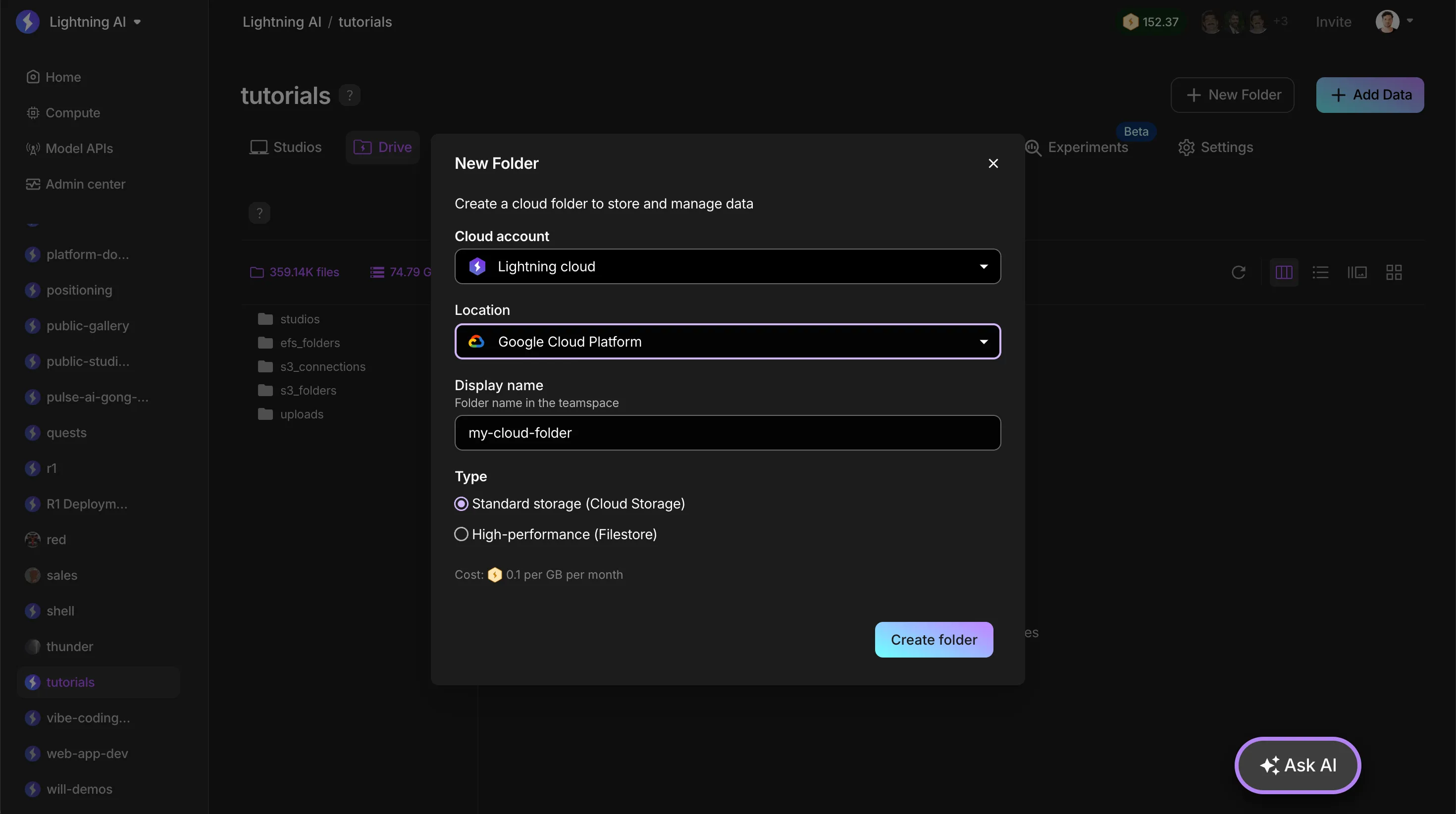
Tip: If you upload data to a GCP folder and can't see it in the terminal, chances are your Studio/Job is not running on GCP!
GCS
GCS folders are the cheapest way to store data on GCP, but it will be extremely slow if you have large datasets or small datasets with millions of tiny files. If you still want to use GCS, we recommend you process your data with LitData which will make it moving the data at least 20x faster by optimizing the data for streaming to machines from cloud storage.
Filestore
Filestore is the highest performance storage and most expensive storage solution on GCP. We only recommend Filestore for tasks like high-performance model training. However, if you really want the fastest performance data solutions for model training, we can do much better than filestore.
Please contact [email protected] to schedule a demo.
Was this page helpful?
Thanks for the feedback.