
Manage cloud accounts
Organizations often juggle multiple cloud accounts, each with its own set of compute resources. This section explains how to integrate these resources, making them accessible to the entire organization. Team members can then request access to these cloud accounts through their teamspaces.

Use cloud credits
Connecting your own AWS or GCP cloud account allows you to use any cloud commitments or startup credits.
Create a cloud account
The public internet can be insecure for your data. So with Lightning AI, you can run all of your workloads within the safety of your VPC and consume your cloud commit and cloud credits in the process.
Manage Lightning cloud
The Lightning cloud is the most flexible cloud available. It comprises of the ML-optimized Lightning cloud along with several other cloud providers (e.g. AWS, GCP, and more...). Go to the Settings > Cloud accounts > Lightning cloud to manage this or any other cloud connected to your Lightning AI account.
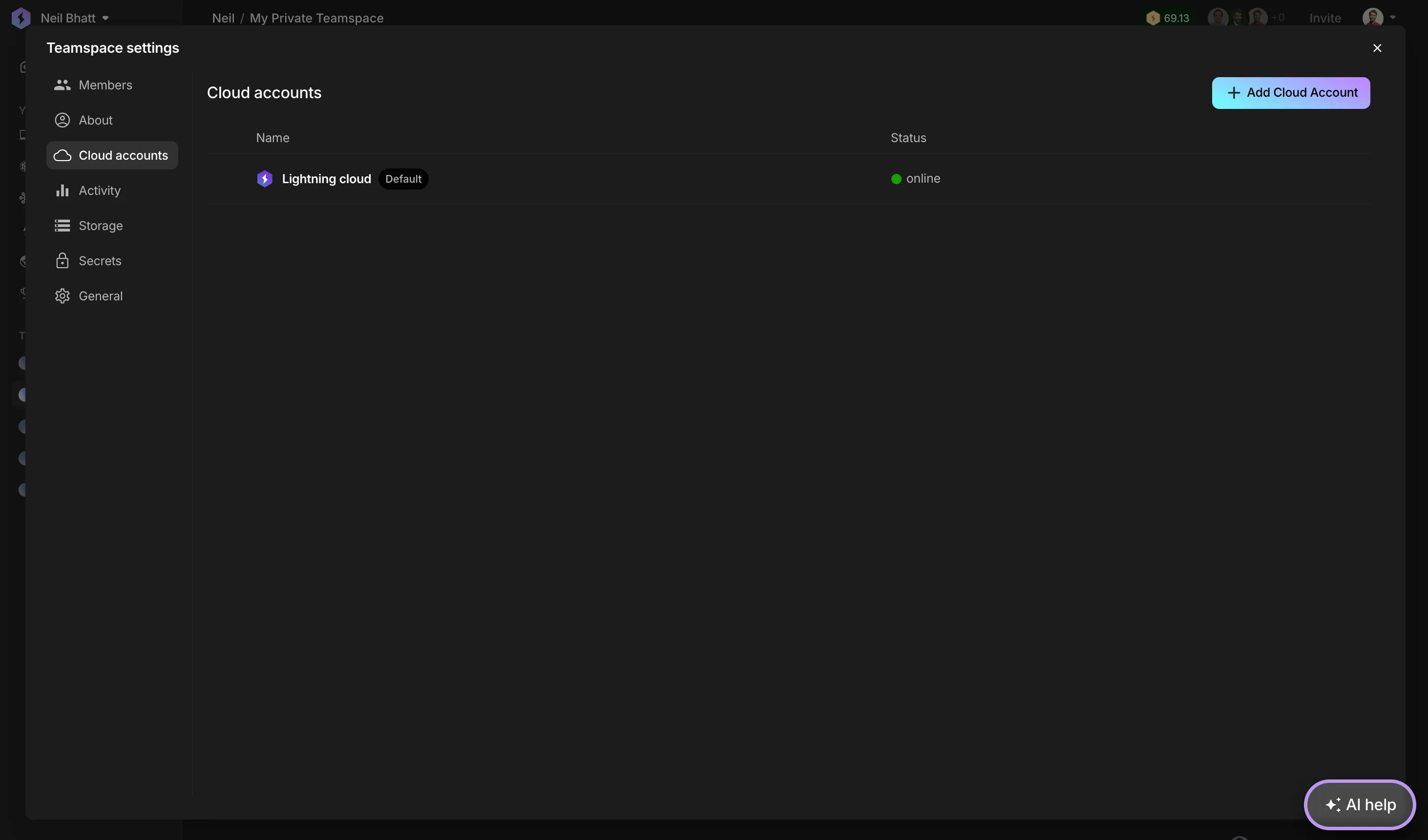
To limit the cloud that your organization uses, toggle on/off the cloud providers you prefer.
Add cloud account
Navigate to Org Settings > Cloud Accounts > '+ Add Cloud Account'.
This setup typically finishes in about 5 minutes. Please reach out to us if it exceeds this duration. You'll need to have AWS admin access to create cloud accounts. You'll also need to be the admin of the organization in Lightning AI.
How to add a cloud account.
Complete AWS setup
Click on "Add cloud account" where you'll be directed to your cloud provider's management stack creation page. This stack facilitates the creation of your cloud account by assembling necessary resources.
Create an AWS stack.
Feel free to modify the form fields as needed.
Do not modify the following parameters: LightningAWSAccountID, the external ID, and the role name. These ensure we can manage your cloud account efficiently.
There are no infrastructure or ongoing monthly costs for keeping a cloud account connected.
Manage teamspace access
By default, every teamspace in your org will have access to this cloud account. Customize by clicking on the cloud account and editing in Cloud account details > Teamspaces.
Select which teamspaces have access to the added cloud account or auto-connect to all teamspaces using the toggle.
Configure cloud accounts
Lightning AI also supports resource tagging, advanced disk encryption, and metadata security to support the requirements of our most security-conscious customers.
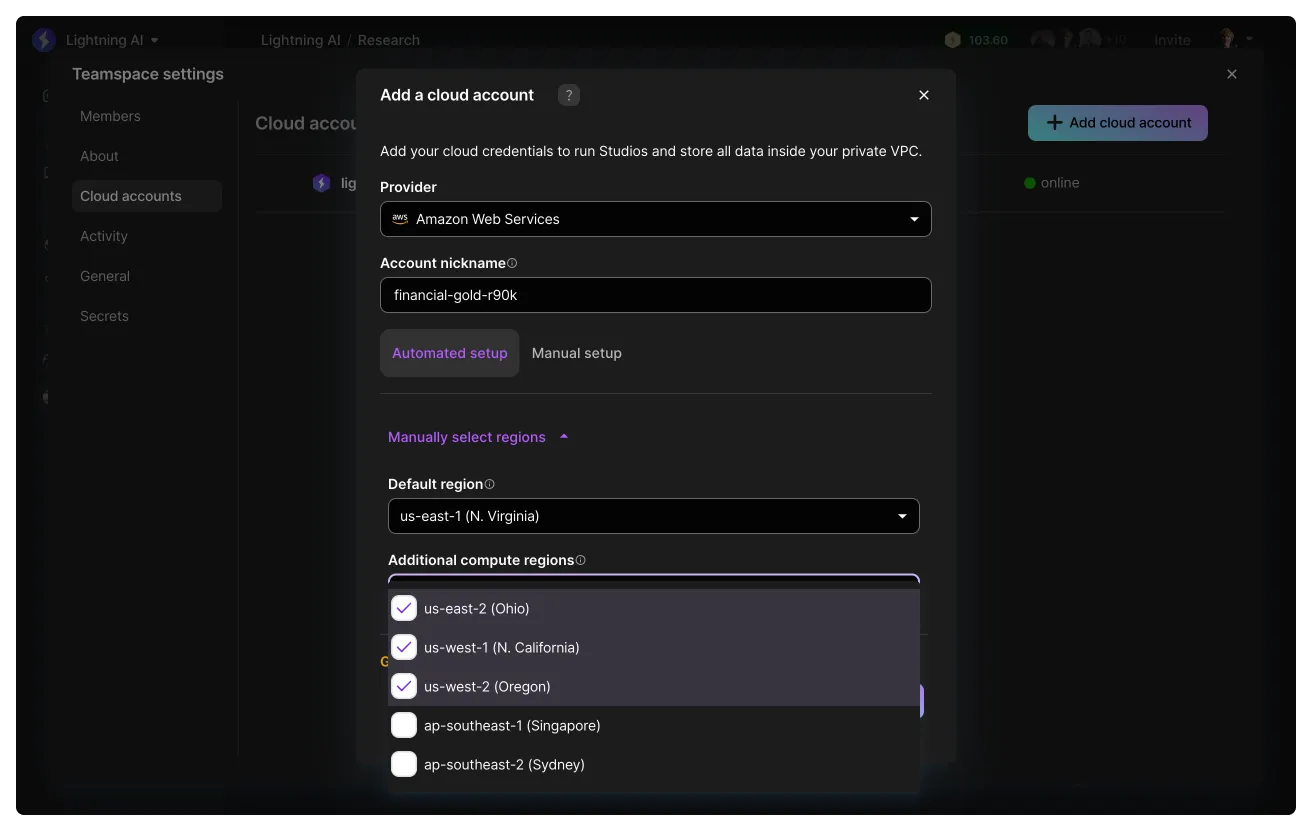
You can also set which default regions your data resides in as well as where the machines will be provisioned at the time of set up. This can not be edited after creation. If you already are working on a BYOC cloud account and want to change the available regions after creation, follow this simple 3 step process:
- Add a new cloud account
- Lock the regions that you prefer
- "Transfer" Studios and data over to that new cloud account using this guide
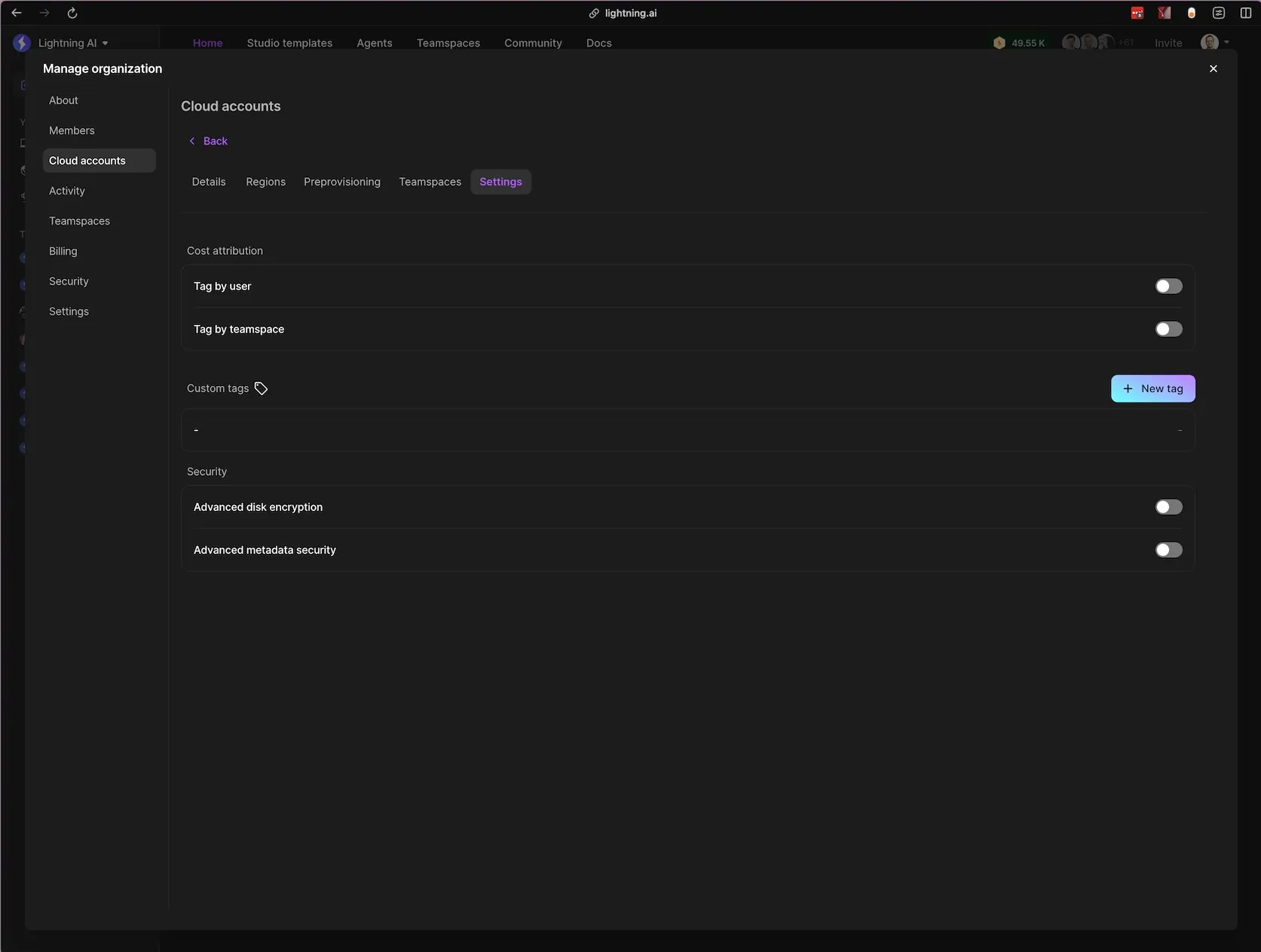
Every resource created in that cloud account can be tagged with the user and teamspace to which they belong. This allows you to track costs at a a fine-grained level within your organization. When enabled, these will add the tags lightning:username and lightning:teamspace_name to each cloud resource, respectively.
In addition to user and teamspace tagging, you have the option to create custom tags. Each tag you create here will be also be applied to each cloud resource that is created in this cloud account. Tag names must follow the naming requirements:
- A maximum of 35 custom tags are allowed.
- Tag keys cannot start with
lightning: - Tag keys cannot start with
aws: - Tag keys and values may only use the characters (
a-z,A-Z), numbers (0-9), spaces representable in UTF-8, and the following characters:+ - = . _ : / @.
Enabling advanced disk encryption Enhances data security by encrypting all data at rest on all Studio and job instances. This can help meet compliance requirements for data protection, and has minimal performance impact on modern cloud instances.
Enabling advanced metadata security will secure Studios and jobs with IMDSv2 configuration. This enhances security by requiring session authentication tokens, and mitigates potential server-side request forgery (SSRF) vulnerabilities. More information can be found here.
Delete a cloud account
If you no longer need a cloud account, remove it as follows.
- Go to Org Settings > Cloud Accounts.
- Hover over the account you wish to remove. Select the 3 dots menu on the row's left side and click Delete.
Delete a cloud account by accessing the menu to the left of the cloud account name.
Note the consequences of cloud account deletion:
- All Studios and jobs, regardless of their status, alongside any data stored in Studios will be permanently lost.
- The cloud account's bucket will be permanently deleted with all contained files. You will not have access to it via Drive your cloud provider web console/CLI.
- Lightning AI will eliminate all cloud infrastructure it created for the cloud account (e.g., VPCs, security groups, EC2 instances). However, resources like the Lightning AI management stack and roles, created by the stack, must be deleted manually.
Deletion typically completes within 2-5 minutes.
Optimize cloud account
These configurations can speed up machine startup times but will incur additional costs.
Preprovision machines
Pre-provisioning substantially reduces machine startup times by keeping them running when not in use. Without pre-provisioning, Lightning AI starts "cold," initializing machines from scratch. When pre-provisioning is enabled, Lightning AI prioritizes machines from the pre-provisioned pool. If none are available, it resorts to a "cold start" process.
To pre-provision machines, go to Cloud Accounts, select an account, and navigate to the Preprovisioning tab.
Pre-provision machines to reduce startup times.
Remember, while preprovisioned machines facilitate quicker Studio launches, they also mean continuous billing from your cloud provider for the resources in use. Lightning AI does not add extra charges for idle pre-provisioned machines in the background.
Deprovision machines
To deprovision machines, decrease the number of pre-provisioned machines.
Decrease the number of pre-provisioned machines.
Request quotas
via Lightning UI
Certain machine types require quotas from the cloud provider. Without quotas, pre-provisioning will not work. If you've requested a specific type of machine or pre-provisioned it and it is not starting in a few minutes, it likely means you do not have quota to run this machine.
Lightning AI automatically detects your quotas and provides a link to request a quota upgrade.
*Note: this process can take up to a week. *
Increase machine quotas.
via AWS console
You can also request quotas directly via AWS UI console.
Please see the AWS quota pages for different machine types and the recommended bump values (allows to get all instances from the machine family) in the table below. Keep in mind: AWS quotas are region-specific, make sure you request a quota in the region your cloud account includes.
Go to the quota request page for the instance type you are interested in, and click the button "Request increase at account level". Put the total quota value you want to get into the "Increase quota value" field and click "Request."
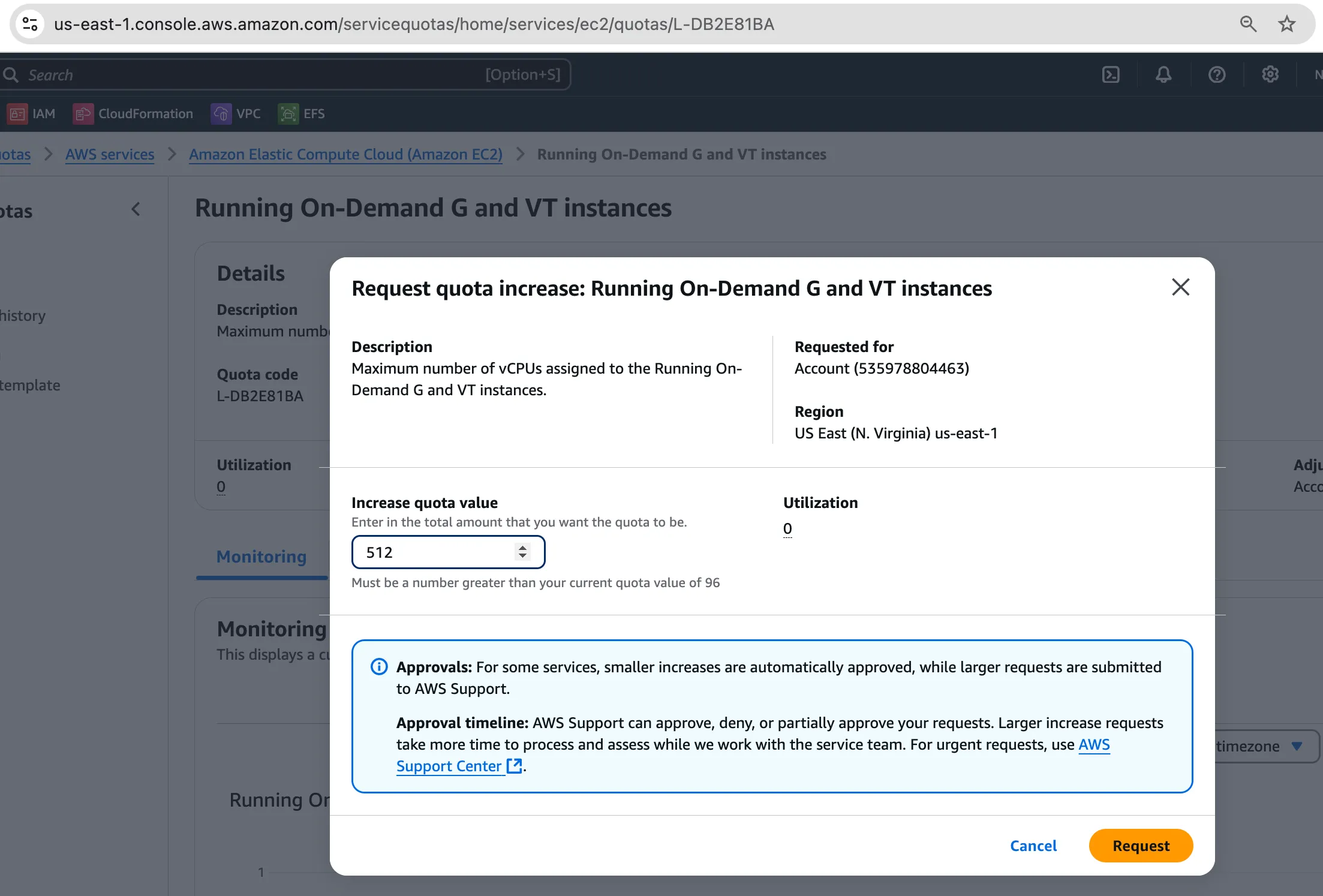
Please note AWS usually takes multiple days to consider your quota increase request.
Request availability
Even if you have quotas, the machines may not be available for you to use. This is especially true for hard to find machines such as A100s or H100s. At this point you have two options, 1) Contact your AWS account representatives to request machine availability or 2) use Lightning cloud which has availability for all machines.
Use the Lightning Cloud for access to scarce machines.
Increase cloud account reliability
This section details features and suggestions to increase a cloud account's reliability.
Add multiple regions
A region is the physical location of machines. Multiple regions enable a cloud account to be fault-tolerant to regional problems. For example, if a data center is offline in the east coast, additional regions allow a cloud account to remain operational with minimal downtime.
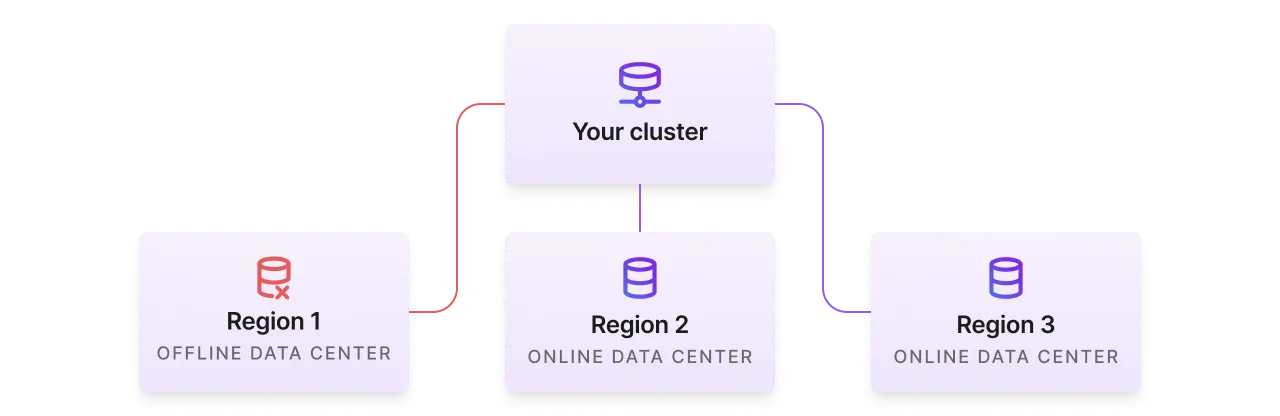
A cloud account can be use multiple regions. Having your cloud account available in multiple regions can significantly decrease machine allocation times across your organization. Lightning AI efficiently scans all available regions to allocate machines as swiftly as possible, opting for the fastest region by default, thereby enhancing your cloud account's reliability.
When creating a cloud account, you'll have the opportunity to select its operational regions. The primary region will always contain the cloud account's storage bucket. Adding additional regions helps find computational resources faster. We recommend including several regions in the cloud account specification.
Monitor regions
For a running cloud account, the status of individual regions is accessible under the "regions" tab of your cloud account's page. This feature allows you to monitor the availability and performance of your cloud account across different regions, ensuring optimal operation.
Monitor the availability and performance of your cloud account across regions.
By strategically managing your cloud account's geographical distribution, you not only enhance its availability but also optimize resource allocation and minimize latency for your users. Lightning AI's intuitive interface and support streamline this process, making it straightforward to manage regions and ensure your organization's compute resources are both efficient and reliable.
Summary
In summary, connecting multiple cloud accounts and managing cloud account within an organization allow for streamlined access and utilization of compute resources across different teamspaces. By following the detailed steps for creating, customizing, and deleting cloud accounts, organizations can leverage these capabilities to their fullest. Preprovisioning machines and optimizing cloud account availability across multiple regions further enhance the efficiency and reliability of resource allocation, ensuring organizations can maximize their cloud infrastructure's potential with minimal setup time and optimal performance.
Remember, successful cloud account management not only involves technical setup but also strategic planning around resource availability, geographical considerations, and cost management. By adhering to the guidelines provided, organizations can ensure a seamless, efficient, and cost-effective deployment of their compute resources within the Lightning AI platform.
Should you require further assistance or have any questions during the setup and management process, the Lightning AI team is ready to provide support. Our goal is to empower your organization with the tools and resources needed to achieve optimal performance and efficiency in your cloud infrastructures.
Was this page helpful?
Thanks for the feedback.