
Deployments
The Lightning SDK provides programmatic control for Deployments. Use this to deploy applications using Docker containers or from Studios programmatically. Deploy applications from within a Studio to leverage your development environment, or deploy custom Docker images for production workloads. Outside a Studio, use the SDK to integrate deployments into ML pipelines, CI/CD, production workflows, and more.
Install the SDK
The SDK is automatically installed inside the Studios.
To install the SDK outside of a Studio (on your local, or a CI/CD system) run this command: pip install lightning-sdk Once the SDK is installed, you'll now have full programmatic control over all your deployments on the Lightning AI platform.
Start and stop a deployment
After construction with deployment = Deployment(), we can start and stop it with simple calls to deployment.start() and deployment.stop().
That means that after initializing your Deployment, it is not automatically starting. You have to explicitly start it with deployment.start().While deployment.stop() gently shuts down your deployment until you decide to spin it up again, deployments will be kept alive as long as you have traffic or minimum replicas configured.
Example starting and stopping a deployment:
#! pip install lightning-sdk
from lightning_sdk import Deployment, Machine

# create a new deployment
d = Deployment(name="my-api", teamspace="production", user="my-user")

# before we call start, the deployment exists but isn't running
d.start(image="nginx:latest",machine=Machine.CPU,ports=[80],replicas=2)

# now let's stop the deployment
d.stop()
Deploy from Studio
One of the most powerful features is deploying directly from a Studio, which allows you to package your development environment into a deployment.
#! pip install lightning-sdk
from lightning_sdk import Studio, Deployment, Machine

# run from inside a Studio: control the studio you are running on
s = Studio()

# create a deployment from the Studio
d =  Deployment(name="studio-deployment", teamspace="production")
d.start(studio=s, machine=Machine.CPU, ports=[8000], command="python app.py")
Another option is that, unlike deploying a generic Docker image, you can deploy from Studios by name via the SDK.
Just pass the studio to the start method like so: deployment.start(studio="my-studio").
#! pip install lightning-sdk
from lightning_sdk import Studio, Deployment, Machine

# reference a Studio by name - deploy from that Studio environment
d =Deployment(name="from-studio", teamspace="production")
d.start(studio="my-dev-studio" ,machine=Machine.T4, ports=[8000],command="python serve_model.py")
Switch machines
The SDK has a built-in enum for different machine types. Switching machines with this enum is as easy as running deployment.update(machine=Machine.T4) or whatever other type of machine you want to use. In contrast to the browser-based interface, the SDK actually blocks until the new machine is ready, as it would be unsafe to continue using the deployment otherwise.Example switching machines using the SDK:
#! pip install lightning-sdk
from lightning_sdk import Deployment, Machine

# get an existing deployment
d = Deployment(name="my-api", teamspace="production")

# the deployment is already running - switch to a GPU machine
d.update(machine=Machine.T4)
Another option is that, like through the browser, you can start deployments on a specific machine via the SDK. Just pass the machine type to the start method like so: deployment.start(machine=Machine.T4).
#! pip install lightning-sdk
from lightning_sdk import Deployment, Machine

d = Deployment(name="gpu-deployment", teamspace="production")

# start the deployment directly on a GPU instead of first going to CPU
d.start(image="my-ml-model:latest",machine=Machine.T4,ports=[8000])
Send requests
To send requests to your deployment, the SDK provides you with several options: Using deployment.get("path"), deployment.post("path"), etc., the deployment will send HTTP requests to your running service and return the response. These methods use the deployment's URLs and handle authentication automatically.
Example sending requests to a deployment:
#! pip install lightning-sdk
from lightning_sdk import Deployment

# get an existing deployment
d = Deployment(name="my-api", teamspace="production")

# send a GET request to check status
response = d.get("/api/status")
print(response.json())

# send a POST request with data
response = d.post("/api/predict", json={"input": "Hello world"})
print(response.json())

# handle streaming responses
response = d.post("/api/stream", json={"query": "Tell me a story"}, stream=True)
for line in response.iter_lines():
    if line:
        print(line.decode('utf-8'))
Configuration options
The SDK provides several configuration classes for advanced deployment scenarios. These allow you to specify autoscaling, health checks, authentication, environment variables, and more.Example using various configuration options:
#! pip install lightning-sdk
from lightning_sdk import Deployment, Machine
from lightning_sdk.deployment import ( AutoScaleConfig, HttpHealthCheck, BasicAuth, Env, Secret)

d = Deployment(name="configured-api", teamspace="production")

# configure autoscaling
autoscale = AutoScaleConfig(min_replicas=1, max_replicas=10, metric="CPU", threshold=70)

# configure health check
health_check = HttpHealthCheck(path="/health", port=8000, timeout_seconds=30)

# configure authentication
auth = BasicAuth(username="admin", password="secret")

# configure environment
env = [
    Env("DATABASE_URL", "postgresql://localhost/mydb"),
    Secret("API_KEY"), # Managed secret
    Env("LOG_LEVEL", "INFO")
]

# apply all these configurations
d.start(
    image="my-app:latest",
    machine=Machine.CPU,
    ports=[8000],
    autoscale=autoscale,
    health_check=health_check,
    auth=auth,
    env=env
)
Update deployments
You can update certain deployment settings without creating a new release. Settings like replica counts, autoscaling parameters, and some networking configurations can be changed on the fly. However, some update arguments create a new release. However, some update arguments are special and changing them create a new release. Here is the list:
- machine: The underlying machine the replica is using
- environment: The docker image
- entrypoint: The entrypoint of the docker container
- command: The command of the docker container
- env: The environnement variables to be passed to the docker container
- spot: Whether the machine should be interruptible
- cluster: The cluster to use. Lightning Cloud or your own BYOC clusters.
- health_check: The logic to check whether your service is ready to receive traffic.
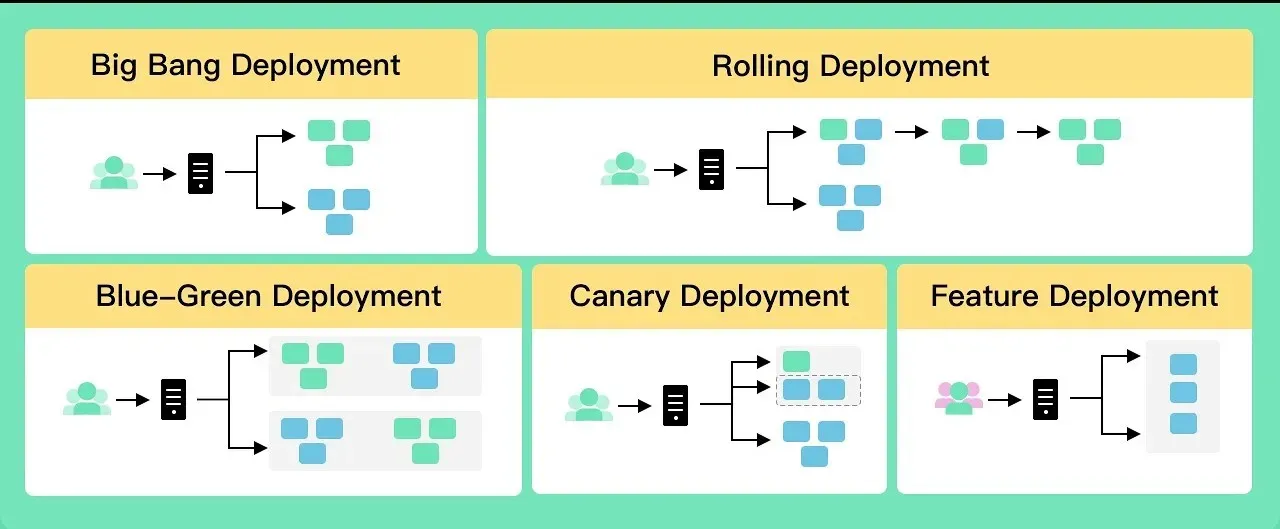
Let's say you wanted to change the command for example. You need to provide a release strategy that would be used to configure how to transfer the traffic from the old replicas to the new ones with zero downtime.
from lightning_sdk.deployment import Deployment, AutoScaleConfig, ExecHealthCheck
from lightning_sdk import Machine

deployment = Deployment(name="My Ollama deployment")

deployment.update(
    command="/bin/ollama serve & sleep 1 && /bin/ollama run llama3.1 && wait",
    release_strategy=RollingUpdateReleaseStrategy(max_surge=1)
)
Note: Currently, only RollingUpdateReleaseStrategy is supported but more are coming such as BlueGreen and Canary.
Tips
When starting a deployment, you can define the default number of replicas it should start with as follows. This is useful to verify your service is starting correctly.
from lightning_sdk.deployment import Deployment, AutoScaleConfig
from lightning_sdk import Machine

deployment = Deployment(name="My Ollama deployment")

# Create the initial release
deployment.start(
   replicas=1,
   autoscale=AutoScaleConfig(
      min_replicas=0,  # We want serverless. Not traffic, no replicas.
      max_replicas=2,  # We don't want expect much traffic, so 2 replicas seems fine.
      metric="GPU",    # We are auto-scaling when the replicas metrics is higher than the threshold
      threshold=65,
   )
   ...
)
API Reference
from lightning_sdk import Deployment

deployment = Deployment(name='my-deployment', teamspace='my-teamspace', org='my-org')
deployment.start(image='my-app:latest', machine=Machine.CPU, ports=[8000])
deployment.update(machine=Machine.T4)
deployment.stop()
A Deployment object has the following functions:
- __init**__**: creation of Deployment
name(Optional[str]): the name of the deploymentteamspace(Optional[Union[Teamspace, str]]): the teamspace the deployment is contained byorg(Optional[Union[str, Organization]]): the organization owning the teamspaceuser(Optional[Union[str, User]]): the user owning the teamspace, Note: Since a teamspace can either be owned by an org or by a user directly, only one of the arguments can be provided.
- start: start a Deployment
studio(Optional[Union[Studio, str]]): deploy from a Studioimage(Optional[str]): Docker image to deploymachine(Machine): the machine to deploy on, default: CPUports(Optional[List[int]]): ports to exposecommand(Optional[str]): command to runentrypoint(Optional[str]): Docker entrypoint overridereplicas(Optional[int]): number of replicas, default: 1autoscale(Optional[AutoScaleConfig]): autoscaling configurationhealth_check(Optional[Union[HttpHealthCheck, ExecHealthCheck]]): health check configurationauth(Optional[Union[BasicAuth, TokenAuth]]): authentication configurationenv(Optional[List[Union[Env, Secret]]]): environment variablesspot(Optional[bool]): use spot instances, default: Falsecloud_account(Optional[str]): cloud account to useinclude_credentials(Optional[bool]): include Lightning AI credentials, default: True
- update: update a running Deployment
machine(Optional[Machine]): new machine typereplicas(Optional[int]): new replica countmin_replicas(Optional[int]): new minimum replicasmax_replicas(Optional[int]): new maximum replicasimage(Optional[str]): new Docker imagecommand(Optional[str]): new commandrelease_strategy(Optional[ReleaseStrategy]): strategy for updates that create new releases
- get: send GET request to deployment
path(str): URL path to request, default: ""**kwargs: additional arguments passed to requests.getReturns: requests.Response
- post: send POST request to deployment
path(str): URL path to request, default: ""**kwargs: additional arguments passed to requests.postReturns: requests.Response
- put: send PUT request to deployment
path(str): URL path to request, default: ""**kwargs: additional arguments passed to requests.putReturns: requests.Response
- delete: send DELETE request to deployment
path(str): URL path to request, default: ""**kwargs: additional arguments passed to requests.delete -Returns: requests.Response
- stop: stop a running Deployment
A Deployment object also has the following properties:
name(str): the Deployment's nameteamspace(Teamspace): the Teamspace the Deployment belongs toowner(Union[User, Organization]): the owner of the Teamspace the Deployment belongs tourls(Optional[List[str]]): the URLs to access the deploymentreplicas(Optional[int]): current number of replicasmin_replicas(Optional[int]): minimum number of replicasmax_replicas(Optional[int]): maximum number of replicasrunning_replicas(Optional[int]): number of currently running replicaspending_replicas(Optional[int]): number of pending replicasfailing_replicas(Optional[int]): number of failing replicasdeleting_replicas(Optional[int]): number of deleting replicasis_started(bool): whether the deployment has been startedis_stopped(Optional[bool]): whether the deployment is stoppedcloud_account(Optional[str]): the cloud account the deployment is running onimage(Optional[str]): the Docker image being used-command(Optional[str]): the command being executedentrypoint(Optional[str]): the Docker entrypoint
Was this page helpful?
Thanks for the feedback.