
Training guide
Get the most out of Lightning AI for pretraining or finetuning models and save on cloud costs with this developer workflow guide.
Watch this in-depth video to understand the full development process, applicable for both pretraining and finetuning.
Pretrain a 3B LLM from scratch.
Choose pretrain vs finetune
Both pretraining and finetuning follow this workflow. Pretraining might take more effort but the core concept remains the same.
If you're new to Machine Learning and wondering about the difference between pretraining and finetuning, here's a quick primer. Otherwise, you might want to skip this part.
Pretraining and finetuning use the same Lightning AI tools, differing mainly in code. Think of pretraining as cooking from scratch and finetuning as warming up a ready-made meal. Although starting from scratch might be more time-consuming and costly, it often yields better outcomes.
Differences include:
| Tooling needed | Pretraining | Finetuning |
|---|---|---|
| Done from a Studio | ✅ | ✅ |
| Can be done on 1 GPU* | ✅ (for small models) | ✅ |
| Can be done on multiple GPUs | ✅ (for small models) | ✅ |
| Requires multi-node | ✅ (for large models) | 🚫 not often |
| Can be done with a small dataset | 🚫 | ✅ |
The challenge in finetuning lies in determining which weights to adjust. There are many techniques (LoRA, QLoRA, Adapter , etc...). However, those are changes done in your code and don't affect the Studio or tools used.
Setup
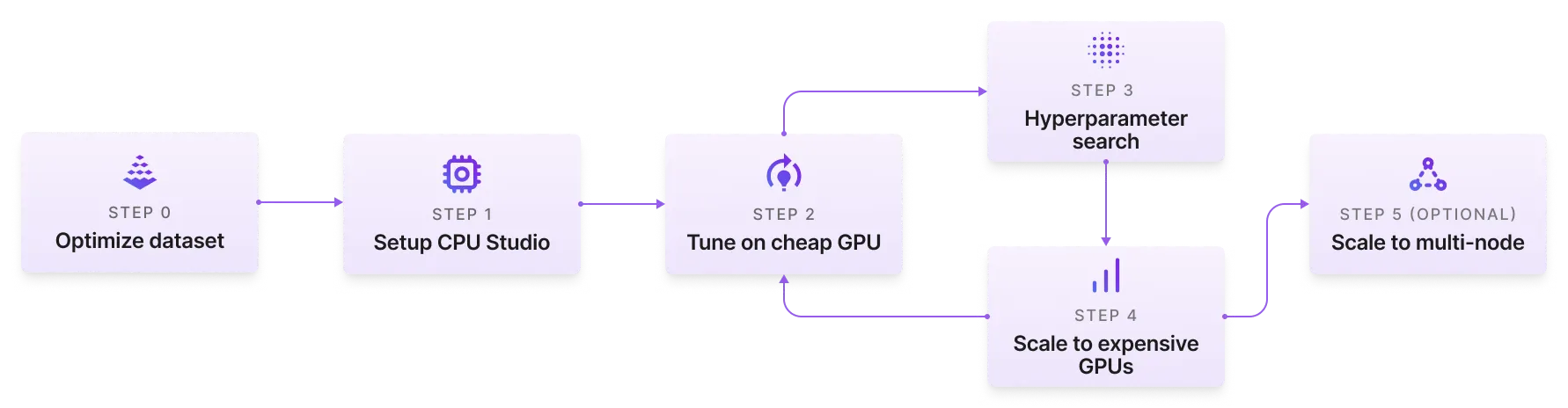
In this phase set up your Studio and make sure your data is optimized for training. If you are new to ML or want ready-to-go recipes, start from one of our prebuilt studio templates. Starting from a template can save you wezapped of setup and training costs.
0. Optimize the dataset
This step applies to both pretraining and finetuning.
Before training, make sure you followed our guide to setup and optimize your data for training. If your dataset is small (<50 GB) and with a few files, then optimizing the dataset probably won't do much for you since the data will not bottleneck training.
| Optimize dataset? | |
|---|---|
| Small dataset (<50 GB) | Not needed |
| Datasets 50GB+ | ✅ Recommended |
| Many small files (100,000+) | ✅ Recommended |
1. Setup Studio on CPU
This step applies to both pretraining and finetuning.
Whether you are pretraining or finetuning, the first step is to set up the Studio. Do this on a CPU Studio so you don't spend valuable setup time on expensive GPUs.
If you start from a Studio template, then everything has already been taken care of for you.
Start from a Studio template.
Typical setup involves:
- Get the code on a Studio (git clone, etc...)
- Installing requirements or building a docker image
- Upload, connect data, make it fast for cloud usage (see Step 0)
- etc...
Setting up code for model training can have a lot of moving parts. We recommend you start from one of our pretraining templates or finetuning templates.
When creating a Studio for training, select a template for pretraining or finetuning
Iterate
With your Studio and data ready, focus on iterations to refine your model before scaling up.
2. Tune on an affordable GPU
This step applies to both pretraining and finetuning.
Next step is to find the right settings (hyperparameters) for your task. This is usually the batch size, learning rate, etc...
During this stage, we are usually trying to figure out the optimal settings for your model so that the model fits in GPU memory, and trains the fastest. Usually, this is done by changing the batch size, learning rate and other settings. For example in LLM finetuning, the context_window can have a big impact here as well.
The parameters that need to be changed, vary from model to model and task to task. The video at the beginning of this page does an in-depth deep dive into the tuning process. This guide here, discusses general principles of the impact that different hyperparameters have:
A deep dive into the tuning process.
3. Hyperparameter search
This step applies to both pretraining and finetuning.
Finding the right set of hyperparameters is crucial for efficient model training. Good hyperparameters, in particular the learning_rate and its scheduling, can mean the difference between a model that trains well and a model that doesn't.
The following image illustrates how different learning rates impact training speed and outcome.
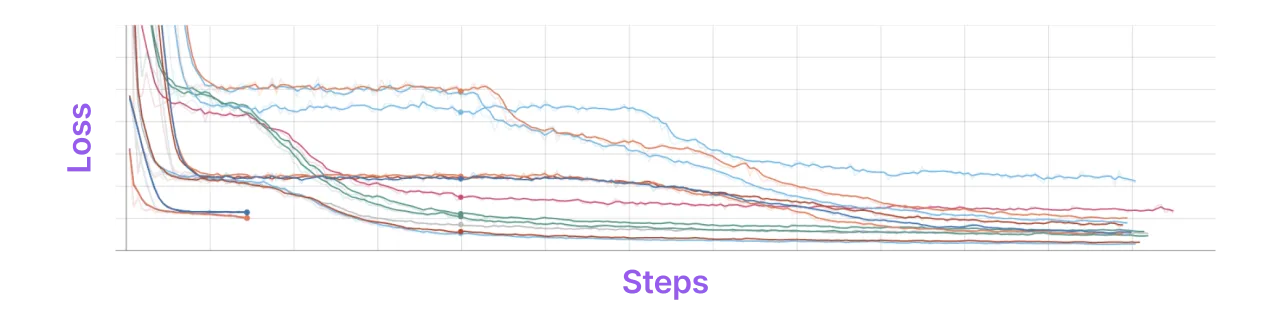
For example, in the image above, you see that multiple learning rates affect the speed and final value of a loss curve. A high learning rate (on the left) goes down faster, but does not go as low as others. A super-slow learning rate can take forever to get to the same level. The best setting is a learning rate that gets the loss low fast without compromising on the global minimum value (where the loss is the lowest).
Read this guid on hyperparameter tuning for more details.
Scale
In this phase, you want to scale your model once you feel confident you've tuned your model settings already on cheaper hardware.
4. Graduate to powerful GPUs
This may not be necessary for all finetuning tasks. Small models or datasets might only require affordable GPUs.
Scale to expensive GPUs to speed up training. Inexpensive GPUs may not be cheaper.
For less than $7, this example Studio finetunes a 1.1B LLM model in 3.5 hours.
In this step, you can likely make the model faster by increasing the batch size (which goes through the data faster), but you'll need GPUs with more RAM. Even though something like an H100 is more expensive per hour, it can ultimately be cheaper because it has to run for less time.
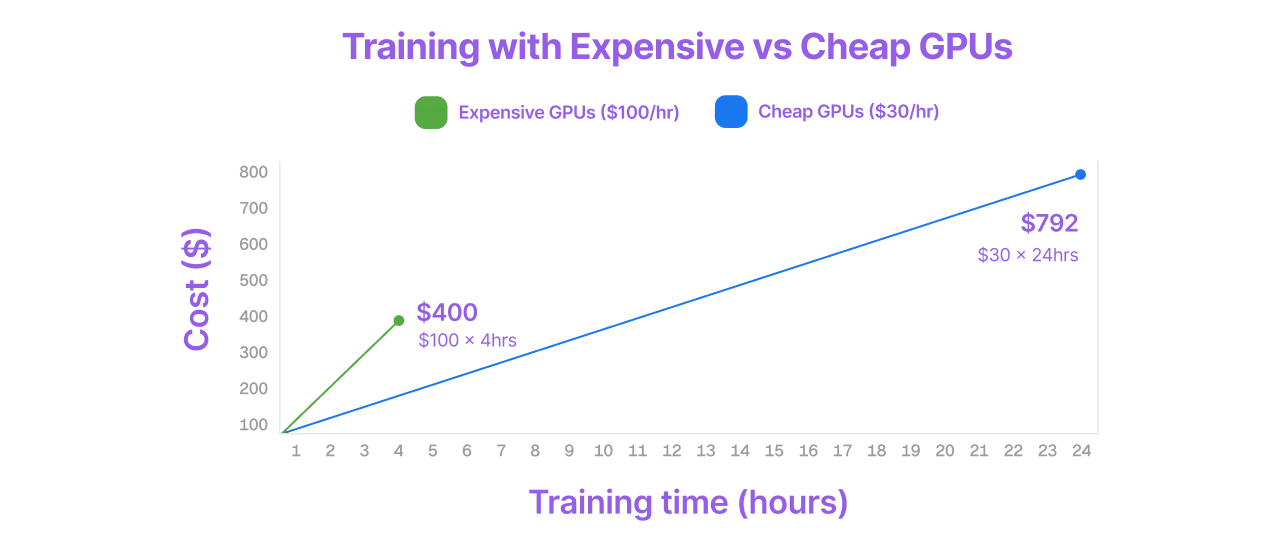
The result is that a GPU that costs more per hour can finish training faster, which in turn uses fewer hours and saves more money.

5. Use multi-node (optional)
This step is usually not required for finetuning. It is also important you don't jump straight to this step because you will waste a lot of money and time on failed model runs. Iterate between steps 2-4 until you're happy with your model before scaling to multi-node.
If your model is very large and does not fit into a single machine (likely LLMs over 3B params), then you'll likely need to enable multi-node training. Multi-node training distributes a model across different machines.
Multi-node training distributes model training across multiple machines.
Multi-node can both enable large-model training, but it can also speed up training on smaller models. The challenge is that doing multi-node training correctly is out of reach for most developers. We recommend you use PyTorch Lightning or Lightning Fabric, where multi-node training is 100% handled for you.
With PyTorch Lightning or Lightning Fabric, if you can train on a CPU, you can train on multi-node with zero code changes.
Here's an example that runs on a CPU Studio, then run it on a 4-GPU Studio, then run it across 2 machines.
Scaling from CPU to 4-GPU.
Run this code yourself to see that there are no code changes required.
# main.py
# ! pip install torchvision
import torch, torch.nn as nn, torch.utils.data as data, torchvision as tv, torch.nn.functional as F
import lightning as L

# --------------------------------
# Step 1: Define a LightningModule
# --------------------------------
# A LightningModule (nn.Module subclass) defines a full *system*
# (ie: an LLM, diffusion model, autoencoder, or simple image classifier).


class LitAutoEncoder(L.LightningModule):
    def __init__(self):
        super().__init__()
        self.encoder = nn.Sequential(nn.Linear(28 * 28, 128), nn.ReLU(), nn.Linear(128, 3))
        self.decoder = nn.Sequential(nn.Linear(3, 128), nn.ReLU(), nn.Linear(128, 28 * 28))

    def forward(self, x):
        # in lightning, forward defines the prediction/inference actions
        embedding = self.encoder(x)
        return embedding

    def training_step(self, batch, batch_idx):
        # training_step defines the train loop. It is independent of forward
        x, y = batch
        x = x.view(x.size(0), -1)
        z = self.encoder(x)
        x_hat = self.decoder(z)
        loss = F.mse_loss(x_hat, x)
        self.log("train_loss", loss)
        return loss

    def configure_optimizers(self):
        optimizer = torch.optim.Adam(self.parameters(), lr=1e-3)
        return optimizer


# -------------------
# Step 2: Define data
# -------------------
dataset = tv.datasets.MNIST(".", download=True, transform=tv.transforms.ToTensor())
train, val = data.random_split(dataset, [55000, 5000])

# -------------------
# Step 3: Train
# -------------------
autoencoder = LitAutoEncoder()
trainer = L.Trainer()
trainer.fit(autoencoder, data.DataLoader(train), data.DataLoader(val))
Deploy
Once the model has been trained, you'll have all the checkpoints you need on the teamspace Drive. There's no need to store checkpoints on different systems, you can simply access the checkpoints from any other Studio.
Checkpoints on a trained model can be accessed anywhere in the same teamspace.
Was this page helpful?
Thanks for the feedback.