
SSH access
Secure your Studio access with SSH (Secure Shell) for encrypted command execution, file transfers, and network services.
SSH use cases
Here are example use cases for using SSH with Studios:
- Remote Studio management: Log in to the studio to install software or perform maintenance, enhancing system reliability.
- Automate Deployment: Streamline your workflow by using SSH for hands-off Studio management and command execution.
- Secure file transfer: Using RSync or SFTP to transfer files programmatically into the Studio, ensuring data integrity.
- Tunneling and Port Forwarding: Leverage SSH for secure network traffic tunneling and safeguarded port forwarding.
- Script Automation: Use SSH for executing scripts on remote servers, simplifying backups, updates, and maintenance.
- Development and Testing: Secure your development workflow with SSH access to servers, version control, and deployment processes.
Web-based SSH access
Use the Terminal plugin on the Studio to ssh into the Studio machine from the browser. If you want a local ssh connection from a laptop or external machine read the next section.
Use the Terminal plugin to ssh into the Studio machine from the browser.
Setup local SSH access
Use the following instructions to connect to a Studio from a Mac, Linux or Windows machine.
Connect via ssh
Mac and linux
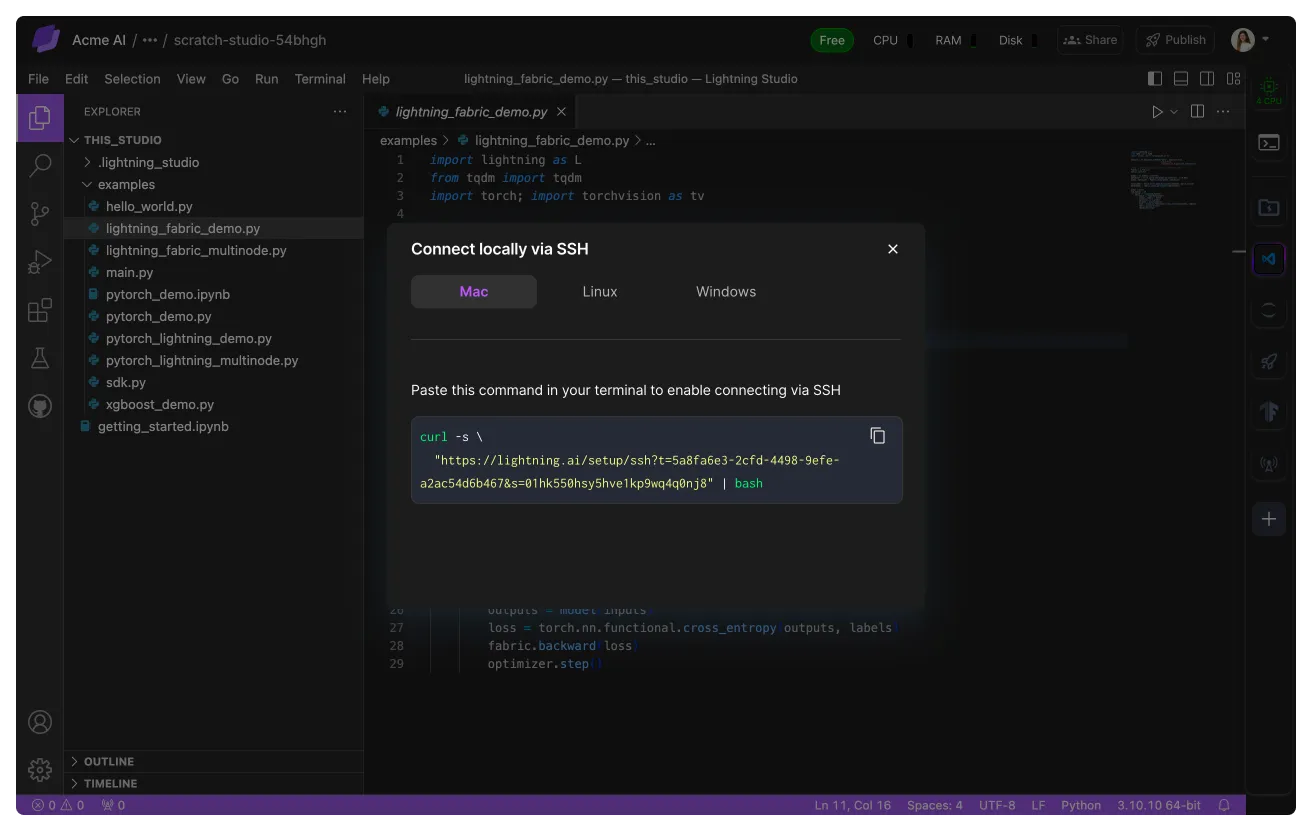
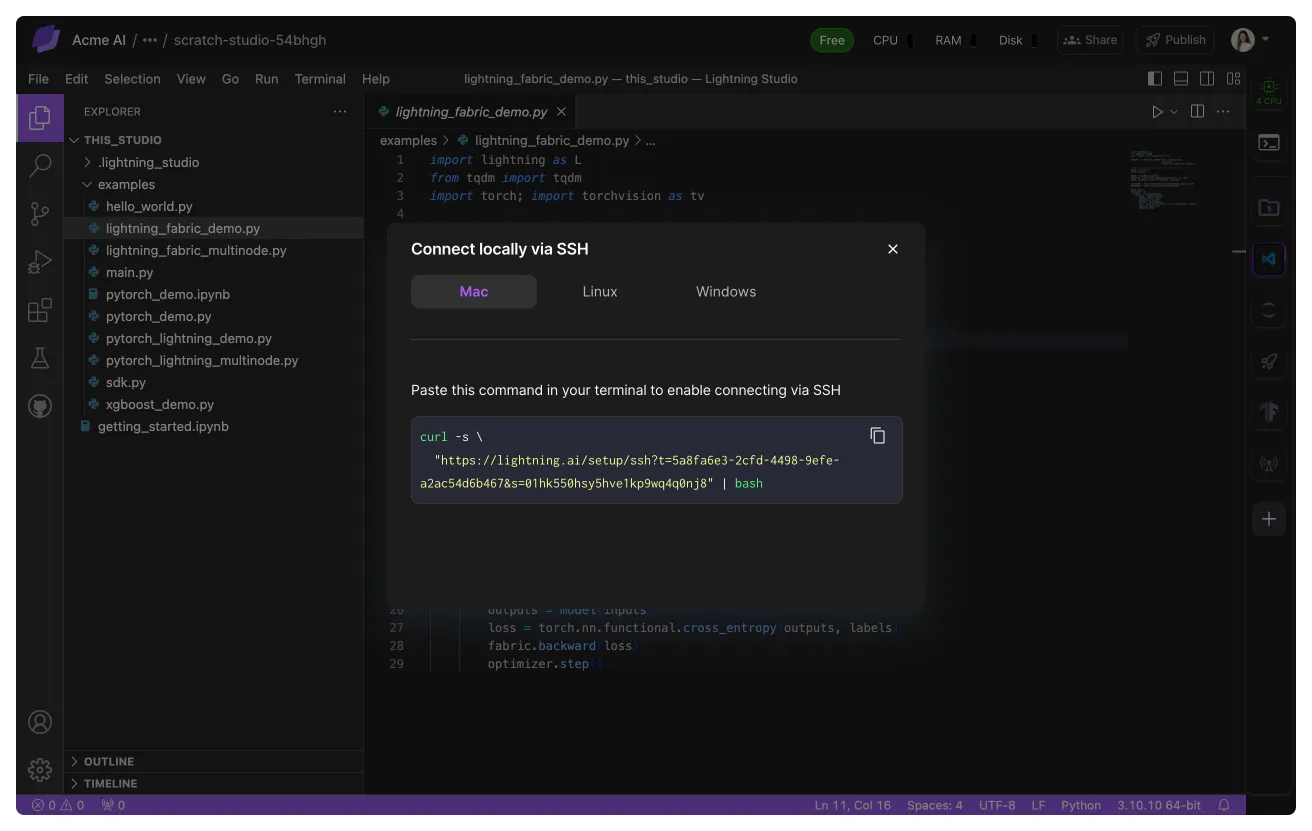
- Click "Connect via SSH" in the Terminal plugin on the right toolbar. Select your OS, and copy the displayed command.
- On your machine, paste the command, and hit Enter. You'll see output like this:
The command will generate the following output. To connect, simply type the ssh command copy the command that starts with ssh, paste it into the same terminal window and press Enter.
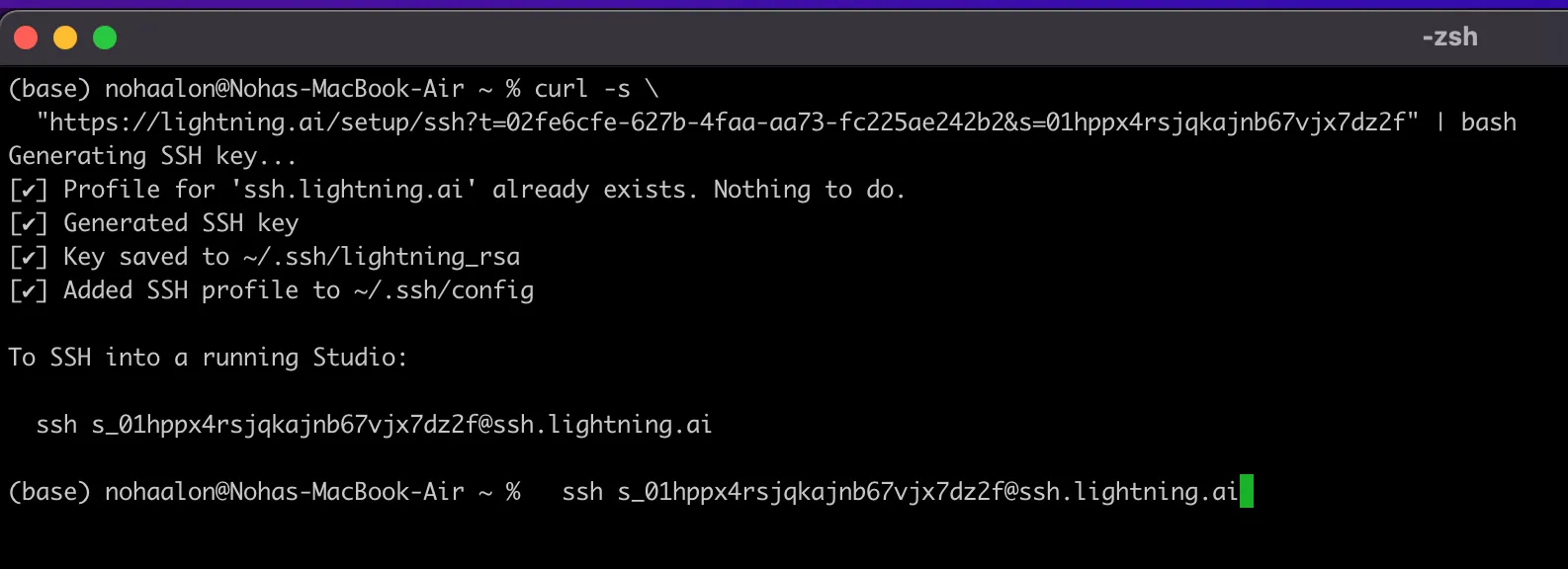
You are now connected to your Lightning Studio 🎉

Windows machines
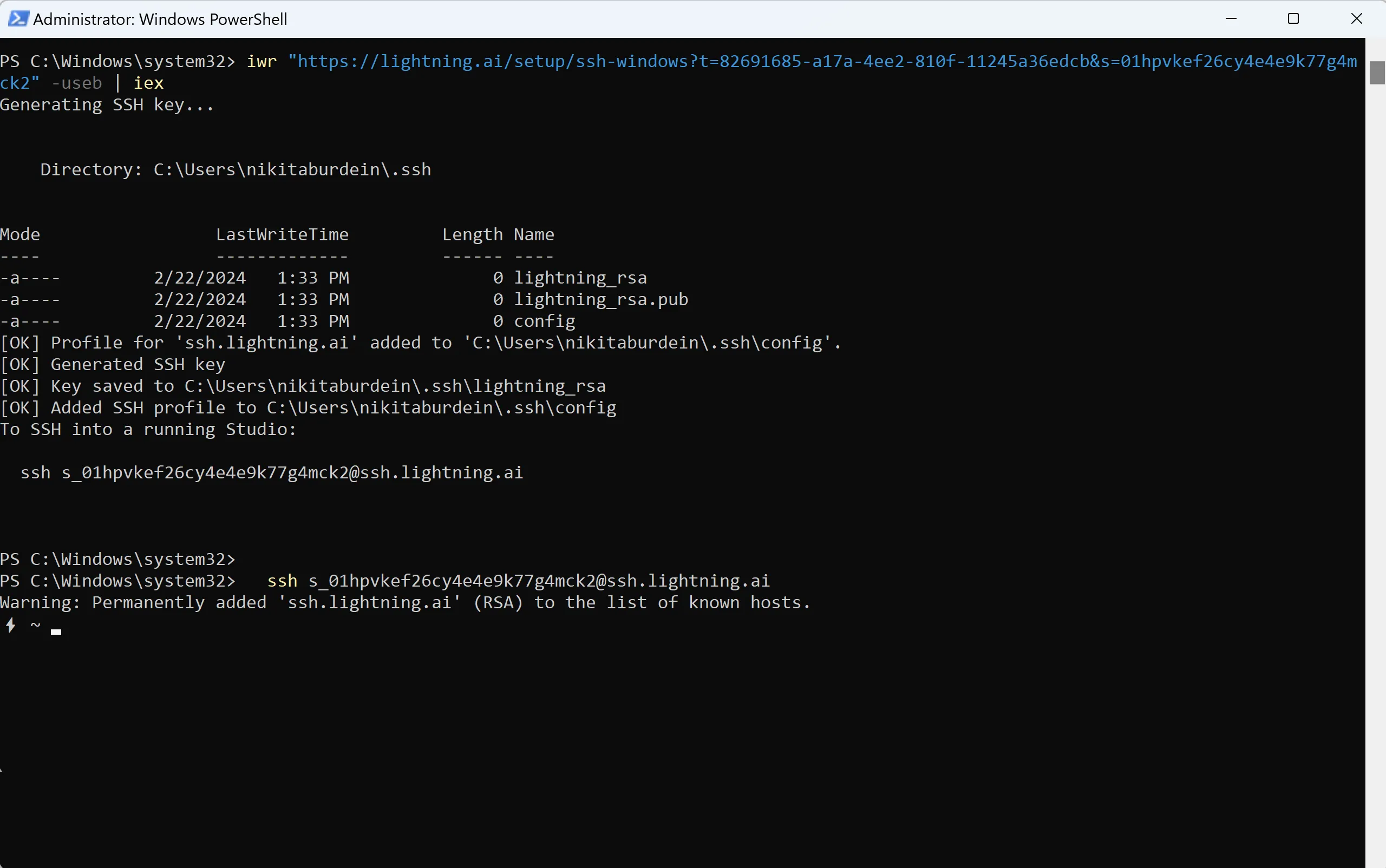
For Windows users, initiate SSH through Powershell in Administrator mode.
Setup a new computer
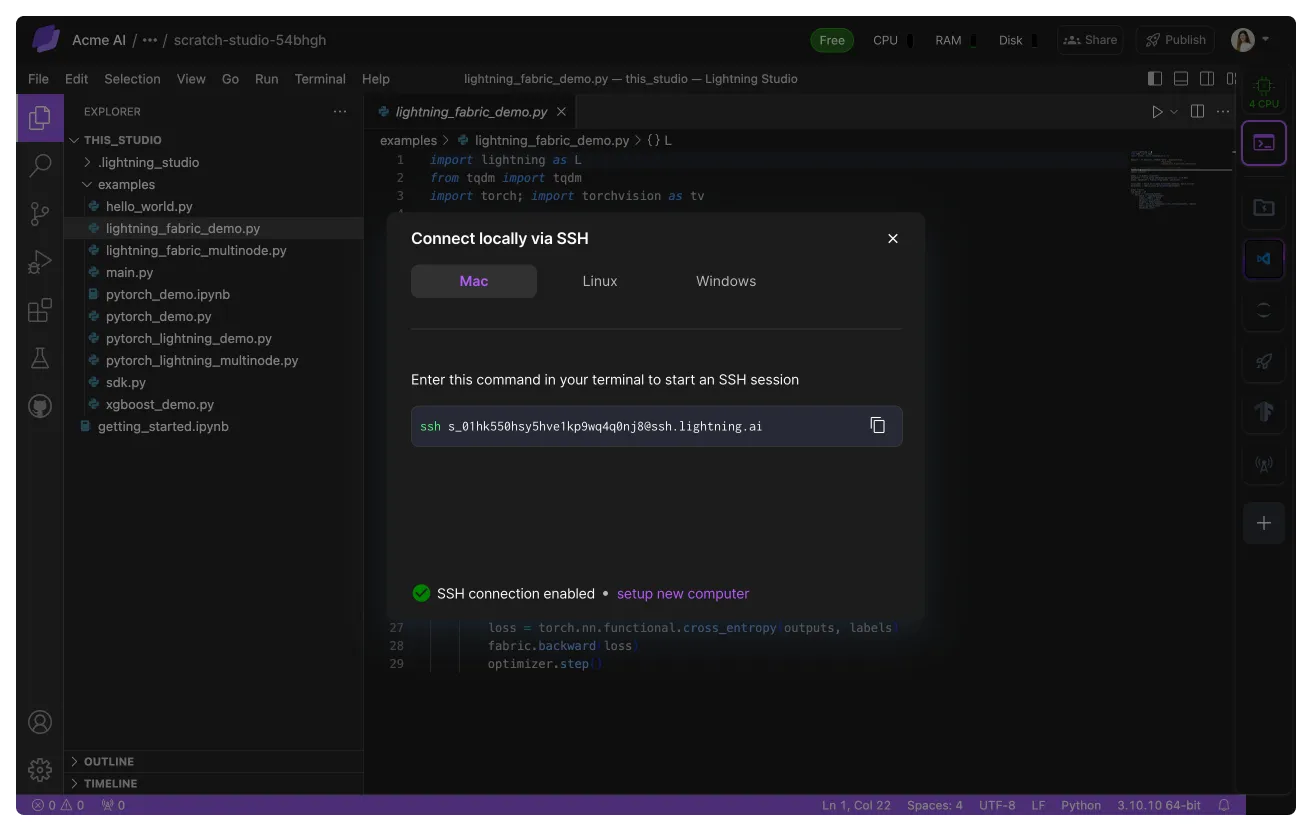
SSH setup is a one-time process per device. If connecting from another device, you'll need to follow the setup steps again.
Select "setup new computer" in the "Connect locally via SSH" modal to re-enable your connection.
Advanced
The following sections will cover adding more general purpose public and private SSH keys.
Public keys
Public keys work in two ways: access all Studios or access a single Studio.
All Studios
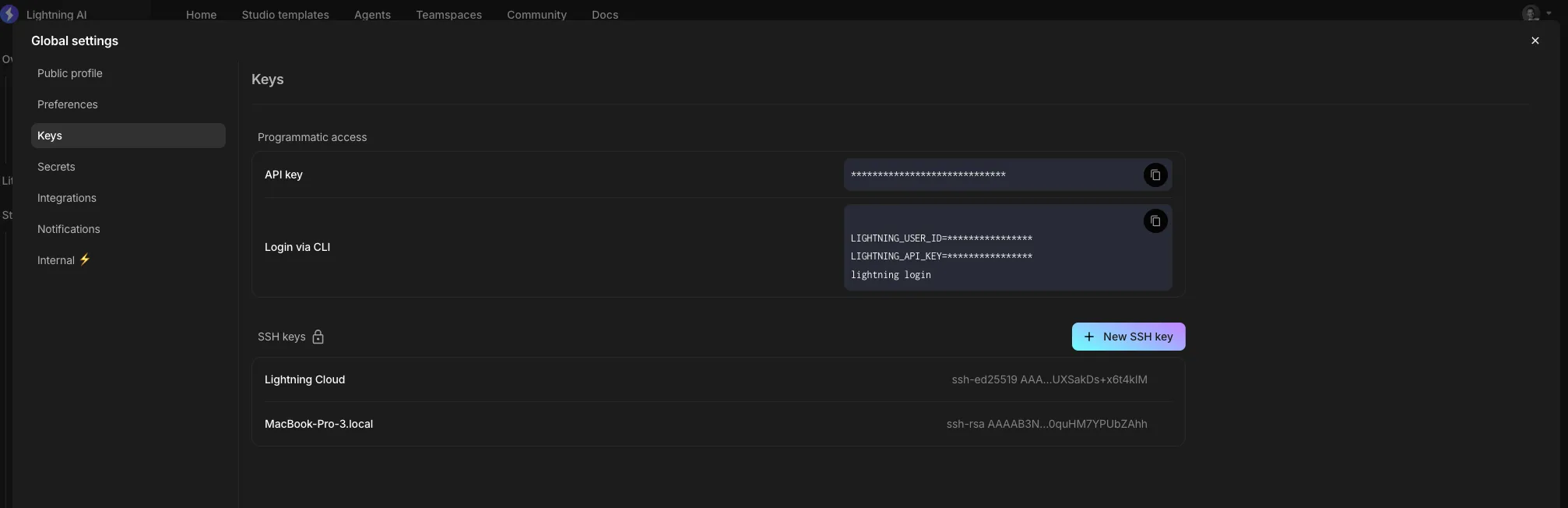
To add a public key that grants access to all Studios, click the profile image on the top right, hit Global Settings in the upcoming menu, and under the Keys tab find the SSH Keys section.
Single Studio
Adding a public key to a single Studio can be done by creating a file (e.g. ~/.ssh/id_rsa.pub) that contains the public key.
Next, add the result to the authorized_keys file by running the following command:
cat .ssh/id_rsa.pub | tee -a /lightning/authorized_keys > /dev/nullTo persist these settings, add the command to the on-start script.
Private keys
Access other Studios programmatically using the SDK. Additionally, add private keys to connect to other machines. Similar to public keys, private keys can be set to all Studios or a single Studio.
All Studios
To add a private key to all Studios, add a Secret (e.g. MY_SSH_KEY). Next, make your ssh-agent use the secret by running:
eval `ssh-agent -s` > /dev/null && echo $MY_SSH_KEY | ssh-add -In order to persist this, add this to the on-start script of all relevant Studios.
Single Studio
Providing a private SSH key for a single Studio works similar to providing it for multiple Studios. Instead of creating a Secret, create a regular SSH keyfile (e.g. ~/.ssh/id_rsa).
Next, add it to the SSH authentication agent by running:
eval `ssh-agent -s` > /dev/null && cat ~/.ssh/id_rsa | ssh-add -To persist your key add it to your on-start script.
Troubleshooting
"Setup new computer" to reenable the connection. If this does not resolve your issue, contact us at [email protected].
Was this page helpful?
Thanks for the feedback.