
Research project
Lightning AI enables research efforts to be efficiently organized at scale. By using Lightning AI to organize research efforts, research leads can track spend, measure progress, and isolate data access in one place.
Set up a research project
This section describes the steps to set up a research project in Lightning AI.
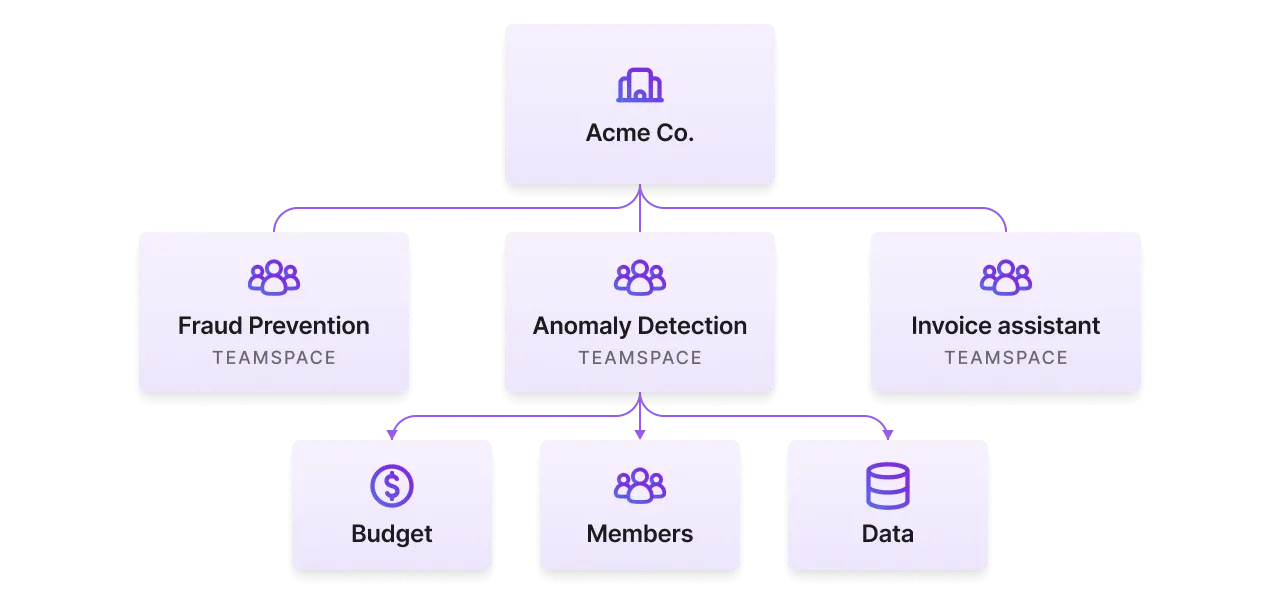
Create an organization
If you don't yet have a Lightning AI organization created for your team or organization, make sure to do that now. There is no cost to create a Lightning AI organization and add members.
Start a new organization.
One teamspace per research project
Create a teamspace for every research project. A teamspace restricts data shared in that teamspace with the teamspace members. It also groups Studios.
Create a teamspace per use case.
Add teamspace admins
Invite the leads of that research effort as admins in the teamspace. The teamspace admins can manage users, request more budget, add data and more.
Add admins to your teamspace.
View all admin permissions here.
Add teamspace members
Invite the rest of the team as members to the teamspace. Teamspace members can start/delete studios and more.
Add teamspace members.
View all member permissions here.
Add teamspace guests (optional)
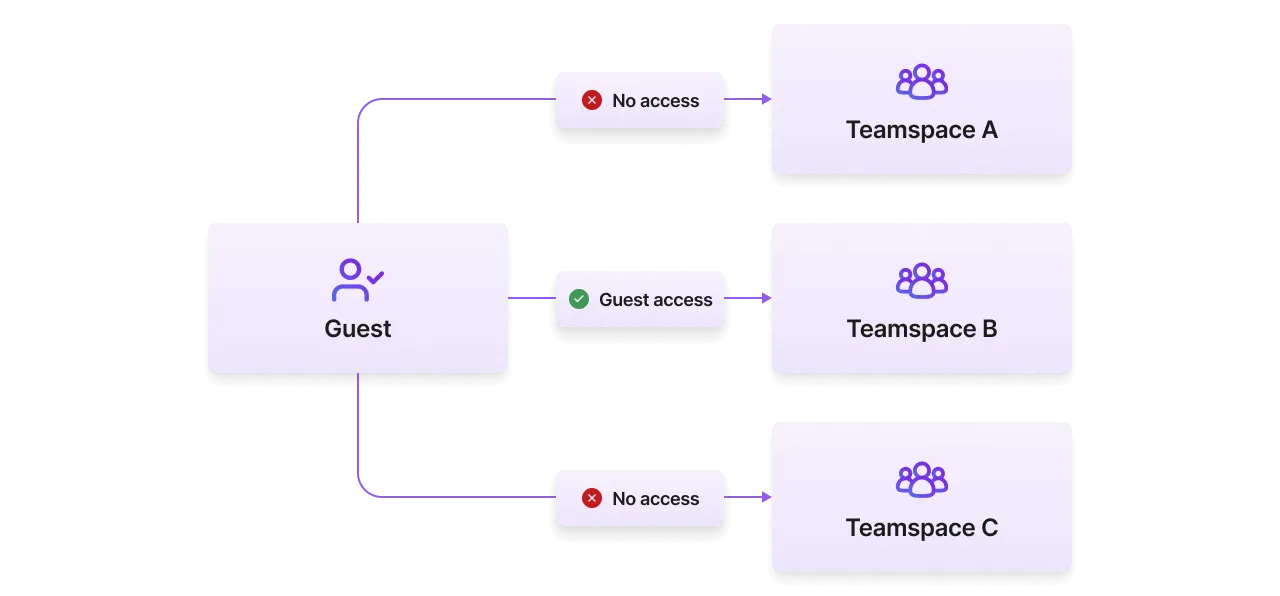
Invite external collaborators (contractors, other enterprise partners) to the teamspace as a guest. Guests have the same rights as members in a teamspace but do not have access to the organization.
Invite guests to your teamspace.
Assign compute resources (optional)
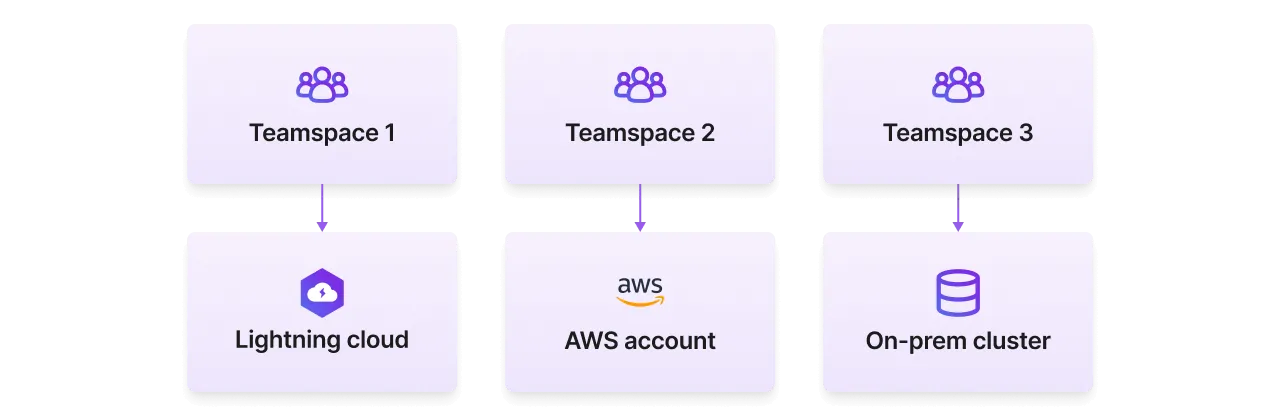
Some times, a research project has a specific set of cloud resources allocated to it. For example, a private cluster or a special AWS cloud account that has a specific cost center associated with it. Give the teamspace access in this step.
Add your cloud account.
Set a budget (optional)
Set a budget for the research effort by transferring credits to it. Members will not be able to spin up cloud resources once the teamspace runs out of credits.
Set a budget for your teamspace.
Advantages
Research efforts have special organizational challenges that Lightning AI solves.
Manage research budgets
Organize a research project in a teamspace to set a budget. Teamspace members will not be able to exceed that budget. Principal investigators can also set spending alerts and require permissions for activity that might exceed a threshold.
Set a research budget for your teamspace.
Track spend
Each teamspace tracks the credit activity of all members and actions in the teamspace. Organization admins can also view the aggregate activity at the organization level for more granular control.
View spending trends in the aggregate across your org.
Allocate compute resources
Organizations have different grants, budgets or compute available to certain research projects. Each teamspace has the ability to add a custom cloud compute resource.
Enable external collaboration
Lightning AI allows members of different organizations to collaborate in the same teamspaces while respecting the security considerations of each individual organization. External contributors can join teamspaces on a per-project basis as "guests" which have access only to that teamspace.
Full reproducibility
Reproducibility in computational research has been nearly impossible until now. Publish Studios publicly or inside the lab that can be duplicated in a few minutes. Duplicate a published Studio to get an exact replica of the environment down to the installed packages, environment variables, files, and more.
Open a template from the Studio template gallery to duplicate the Studio and it's environment.
This allows work to be instantly open sourced in a way that can be fully replicated.
Live collaboration
Researchers can collaborate with each other on the Studio to explore results, visualize experiments, share files/arfiacts, debug code and environments together. No need to set up local environments or figure out how to get a collaborator to reproduce your results.
Collaborate in real-time, securely.
Use cloud credits
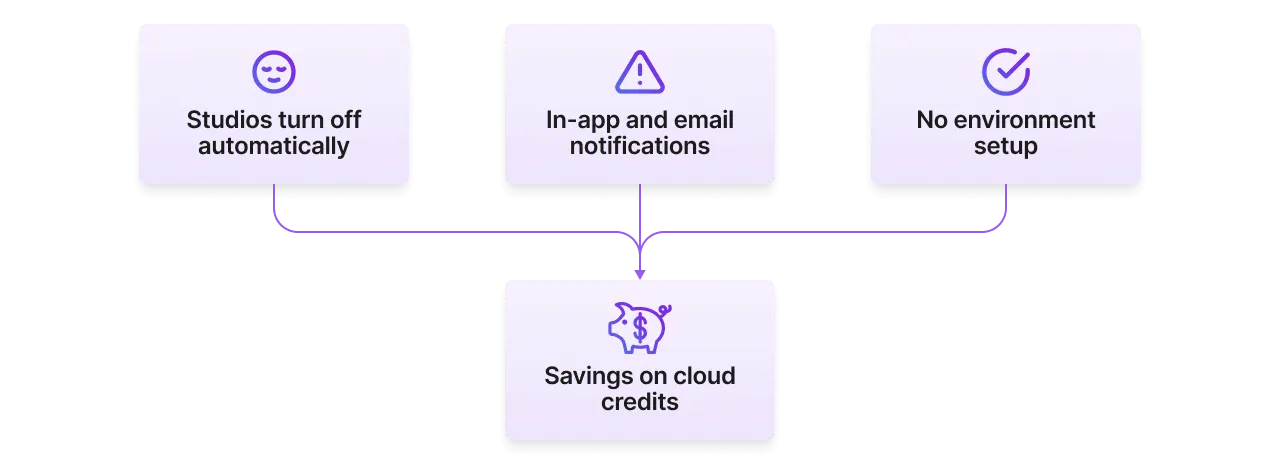
The majority of research grants given by cloud providers go unused. Connect a cloud account in < 5 minutes to immediately start using those cloud credits. Cost saving features like auto-sleep, alerts and more, help users make their cloud credits last much longer on Lightning AI.
Open source work
Work done on Studios can be open sourced and made public instantly. No need to "clean up" the code, or spend time writing lengthy instructions on how to reproduce the environment and "hope" users can replicate the exact same code and results the research presented. At the end of research, publish a Studio which can be accessible to anyone on the internet, or internally in your organization.
Publish your Studios as open source work available to the public.
Organize work
Below are our recommendations to best organize the work for an ML use case.
One Studio per task
A use case often has many parts to it: data pipelines, data cleaning, embedding, training, finetuning, serving, monitoring, and more. Limit each Studio to encapsulate one task.
Here is an example of a teamspace designed for the fraud use case.
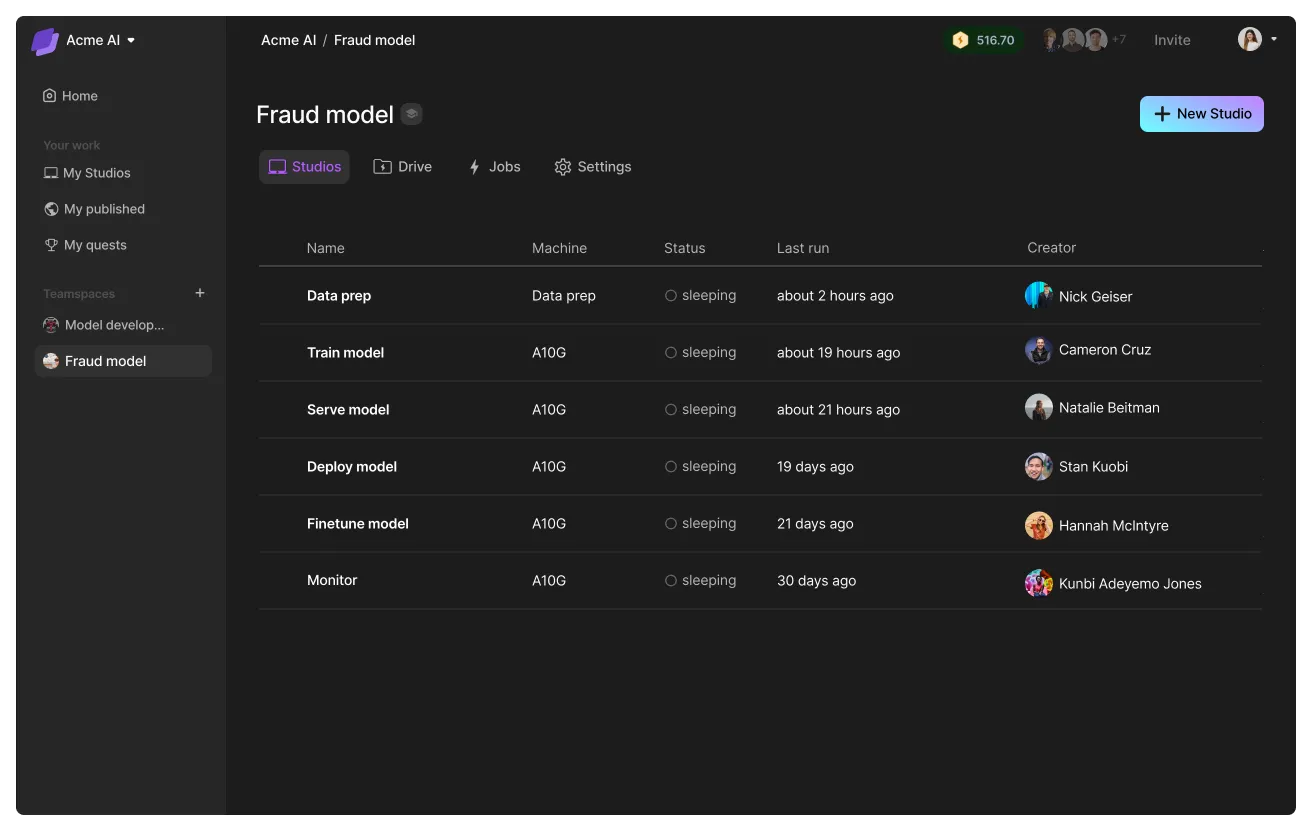
By limiting each Studio to a single task, you can create pipelines with our SDK that integrate Studios into your favorite workflow managers.

# login to the platform
# export LIGHTNING_USER_ID=000000-000000-000000-00000-000000000
# export LIGHTNING_API_KEY=111111-111111-111111-11111-111111111

from lightning_sdk import Machine, Studio

data_prep_studio = Studio("data_preparation")
data_prep_studio.start(Machine.DATA_PREP)

data_prep_studio.run("python prepare_data.py")
data_prep_studio.stop()

train_studio = Studio("training")
train_studio.start(Machine.V100_X_4)
train_studio.run("python train.py --data_path /teamspace/studios/data_preparation/preprocessed_data")
train_studio.stop()

deploy_studio = Studio("deploy")
deploy_studio.start(Machine.T4)
deploy_studio.run("python deploy_server.py --checkpoint /teamspace/studios/training/checkpoints/last.ckpt") # leave it running to serve requests
Add data
Connect the right data sources to the teamspace. This data is only available to the members of the teamspace and provides data governance and access controls.
Add data to your teamspace to use across Studios.
Lightning AI offers various methods such as direct uploads, connect an S3 bucket, import from snowflake, and more. Lightning AI can also enable custom connectors for enterprise customers.
Was this page helpful?
Thanks for the feedback.