
Side projects
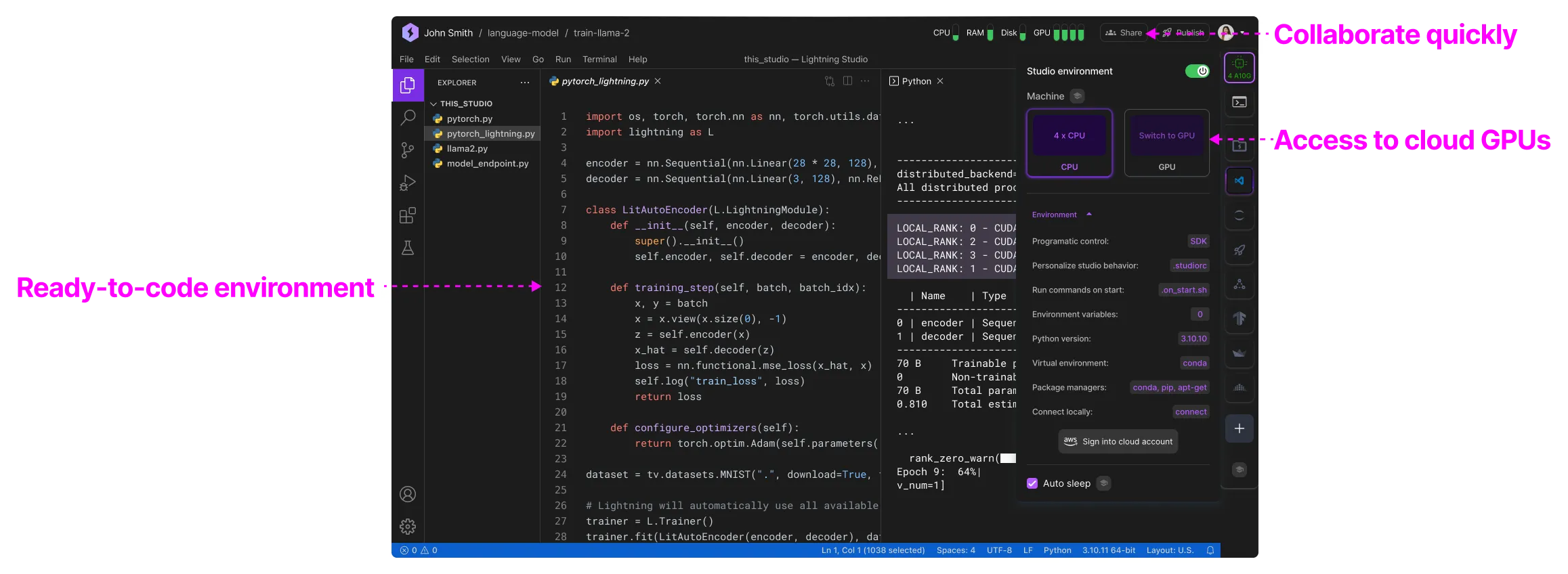
Lightning AI is great for personal use because it allows quick collaboration, access to cloud GPUs and ready-to-code environments that boot up instantly when you need them.
First time set up
Create teamspace
Create a single teamspace to group a set of Studios.
Create a teamspace for your personal project.
Add credits
Add credits to the teamspace to set a budget. Use the activity tab to monitor costs. There is a "wallet" that belongs to your user and one for each teamspace. This ensures that any credits that you receive from your subscriptions always end up in the same user wallet. From there, you can transfer them to any project you're working on in a teamspace.
Add credits to the teamspace to set a budget.
Create one Studio per project
Create one Studio per project or idea you are working on. Each Studio is limited to a single environment.
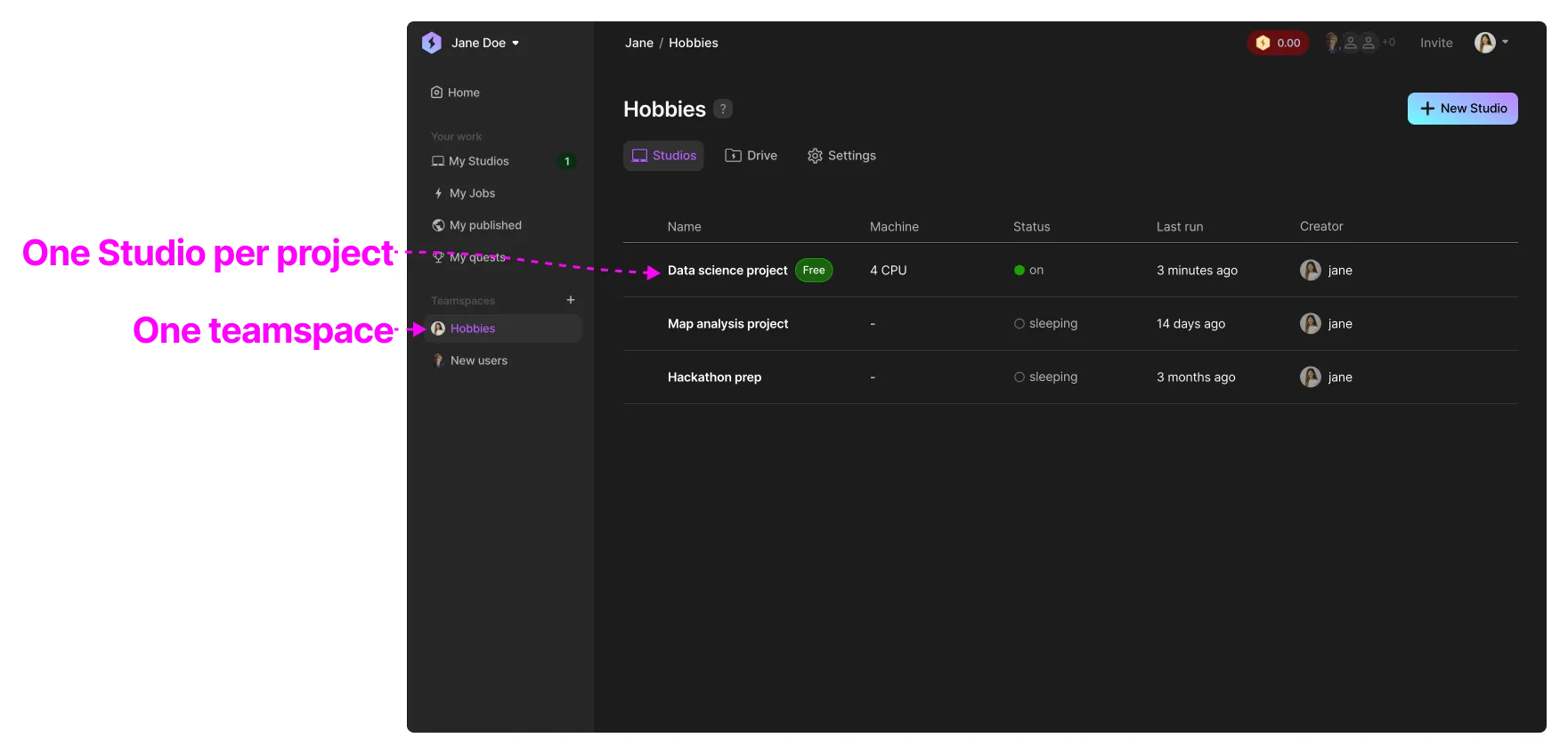
This allows you to have independent environments for each task or project you are working on.
Invite collaborators
If you're working on a joint project, invite your collaborators to the Teamspace. There, you'll all be able to see and build on each other's work.
Use the Invite button to add additional members and admin to your teamspace.
Create additional teamspaces
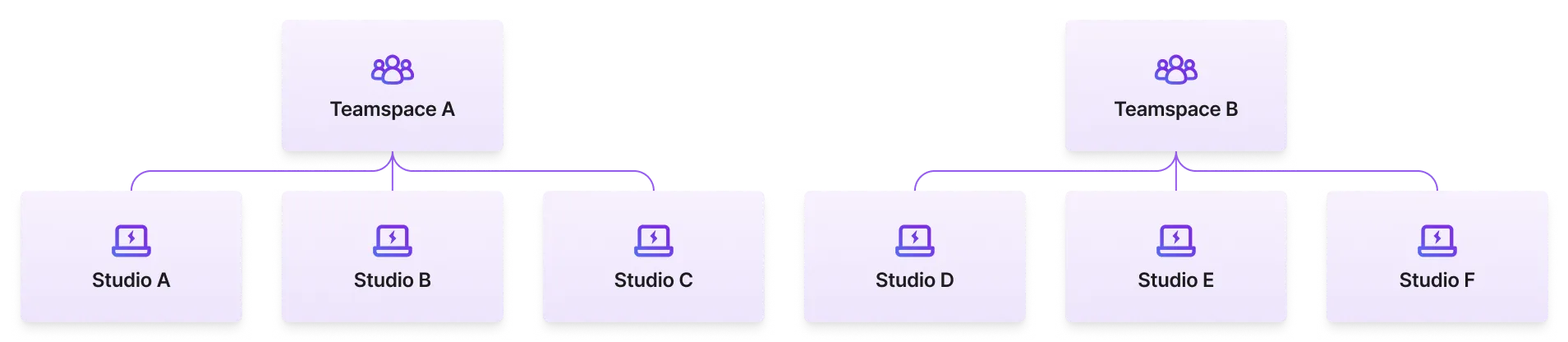
If you find that many Studios are related, you should create a new teamspace and group them there.
Grow
As projects mature, we recommend to create an organization (free of charge) and move all your work there. This will allow your work and projects to scale as you continue to add more team members.
Was this page helpful?
Thanks for the feedback.