
Manage teamspaces
A teamspace groups a set of Studios with data, people and a budget. Create a new teamspace for every use case or to provide isolated data access to a group of people. Note: only teamspace admins can manage teamspaces.
This section details the management capabilities of the teamspace.
Set up a teamspace
This section describes how to set up a teamspace.
Create a teamspace
First create a teamspace by navigating to the teamspaces section, press the plus button and follow the instructions. Choose the teamspace type depending on what the teamspace purpose will be. It is typical in organizations to create teamspaces for every team and for every cross-functional effort.
Choose your teamspace template.
Add metadata
Maximize teamspace discoverability and transparency by adding descriptive metadata. The name should reflect the use case. The description should reflect the purpose of a teamspace and provide a person not familiar with the teamspace a high-level understanding of the teamspace goal. Add a picture that illustrates what the teamspace is focused on. If the teamspace represents a model, we recommend the image reflects the outputs of the model or the data for the model.
Make teamspaces discoverable with relevant metadata.
Manage members
This section describes tools to manage teamspace members
Add or remove members
Only admins or teamspace owners can invite new members. To add a member to your teamspace, go to teamspace settings > Members > '+Invite member'. If the person is not yet part of the organization, they will be added to the organization as well.
Add team members to your teamspace.
To remove a member, click the 3 dot menu next to the member's name and remove them. This will only remove the member from the teamspace, not the organization. If they created Studios, or added files, all of these resources will remain in your teamspace. Soon, you will also be able to transfer ownership of all these resources to another member of the teamspace.
Remove members by opening the 3 dot menu next to the member's name.
Manage roles
To change the role of a member, go to teamspace settings > Members. Next hover over the member you'd like to manage, click the 3 dots menu on the left side of the row, and Change their role.
Change a member's role by opening the 3 dot menu next to the member's name.
The two roles available are Member and Admin.
- Members can start Studios, share data, run jobs, and create keys.
- Admins can do everything a member can. Additionally, they can add cloud accounts, view budgets and credit activity, invite new members, manage all settings, and delete the teamspace.
Manage spend
Teamspaces allow admins a top-level, granular view of spend within a teamspace. Use this to reduce cloud costs and identify waste.
To view credit activity, go to teamspace Settings > Activity.
View credit activity within your teamspace settings.
The activity tab allows the admin to filter by date, activity, duration and more. If you need additional controls, please reach out.
Set credits auto-reload
Ensuring that your team has the credits to do their work is manual and error-prone. Set up auto-reload to ensure that the projects that absolutely can not experience any interruption never do.
Automatically replenish a teamspace's credit balance from the organization wallet when it falls below a specified threshold.
To enable a teamspace credits auto-reload, go to the teamspace settings, open the "General" section, and switch "Auto-reload credits" ON. You can then edit the "Reload amount" and "Threshold", or use the default values. All new teamspaces have the "Auto-reload credits" setting enabled by default.
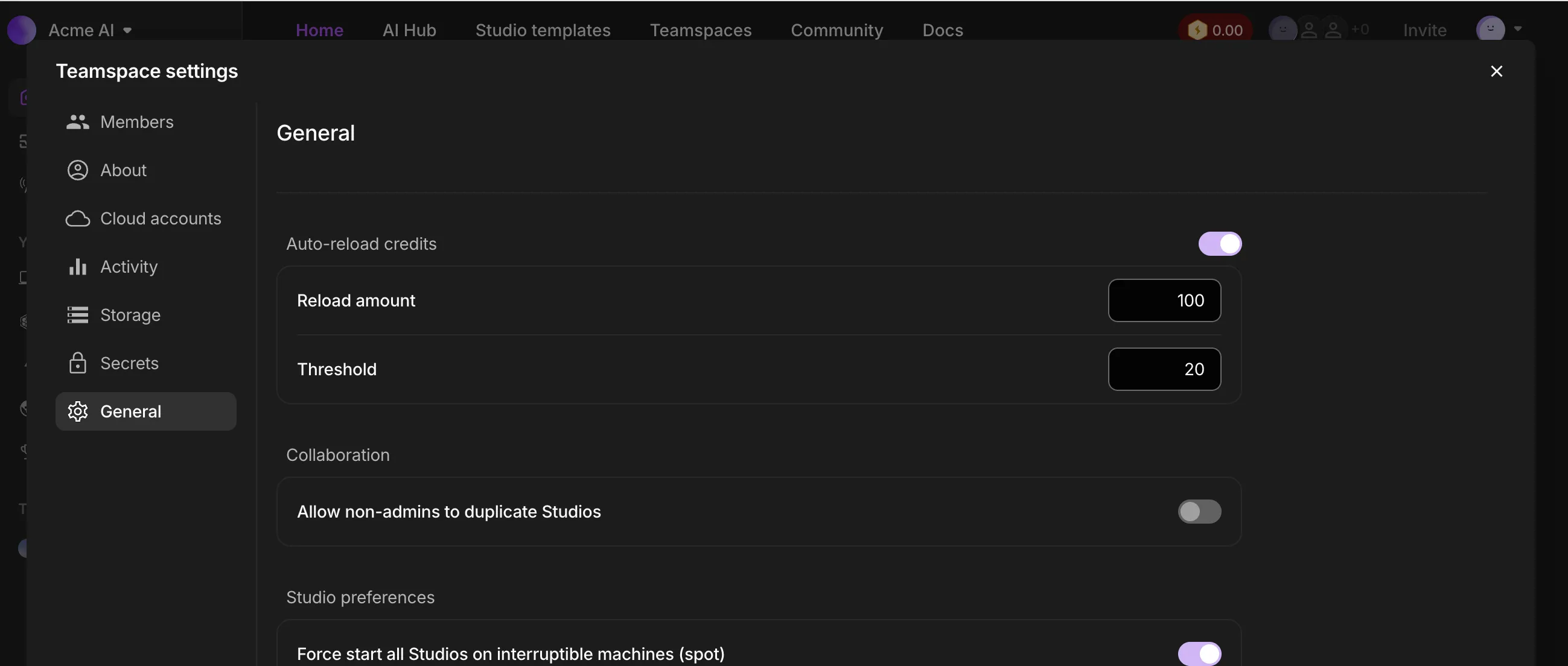
Only organization admins can enable and edit this setting.
Set a budget
Set a budget on a teamspace to reduce cloud spend.
To set a budget, bring credits into the teamspace. To import credits, click "Transfer" in the "Activity" section in teamspace settings, select the source and amount and click transfer.
Add credits to a teamspace by selecting "Transfer".
Only organization admins can transfer credits from the organization into the teamspace. To transfer between teamspaces, the individual making the transfer must be an admin of both teamspaces or an organization admin.
| Teamspace member | Teamspace admin | Organization admin | |
|---|---|---|---|
| Org -> teamspace | ✅ | ✅ | |
| Teamspace -> org | ✅ | ✅ | |
| Teamspace -> teamspace | ✅ (must be admin of both teamspaces) | ✅ |
Manage cloud accounts
Lightning AI allow Studios to run on the default Lightning cloud machines or on your AWS account. This allows enterprise users to consume their AWS credits and their preferred cloud pricing.
To add your own AWS cloud account make sure you have admin access to your AWS account. If you are an AWS account admin go to teamspace settings > Cloud accounts > '+ Add cloud account' and follow instructions.
New connections are added within 5 minutes. Please reach out if it's taking longer than that.
Add new cloud accounts from the "Cloud accounts" section in teamspace settings.
Manage secrets
Secrets are variables that store sensitive information (e.g., passwords, API Keys) essential to operating a software program. Secrets are passed to Studios at runtime. These secrets should not be hard-coded into the code, but instead read at runtime by programs.
Add secrets that can be read by all Studios in the teamspace as follows:
Add secrets in the "Secrets" section in teamspace settings.
Manage settings
Under the "general" tab you'll find teamspace settings such as the ability to start every Studio on the last machine the Studio used.
The General tab offers the choice to keep the same machine type when Studio restarts.
Please reach out on Discord to request additional teamspace features.
Delete a teamspace
To delete your teamspace, go to teamspace settings > General > Delete. This operation is not reversible, so be 100% certain that you have saved or duplicated all data and Studios that you need.
Discover teamspaces
Org members can discover your teamspace in the "Teamspace" tab. This gives members an understanding of what is happening around the org at a high-level.
The teamspace tab in the top navbar shows all teamspaces in an org.
Was this page helpful?
Thanks for the feedback.